Introduction
Keep your calendars and contacts up to date across your devices with Hipposerve Mail. CalDAV synchronises your calendars, while CardDAV synchronises your contacts.
Once connected, you can manage your appointments and address book through a compatible app on your phone, tablet or computer.
Before you begin: You need an Enhanced mailbox to use calendar and contact synchronisation. You will also need your full email address, email password and a compatible calendar or contacts app.
Step 1: Find Your Synchronisation URLs
Your mailbox provides separate connection URLs for calendars and contacts. To find them:
- Log in to your Webmail.
- Click your profile picture or account icon in the top corner.
- Select My Account.
- Open the Synchronization tab in the left-hand menu.
- Copy the CalDAV URL for your calendars and the CardDAV URL for your contacts.
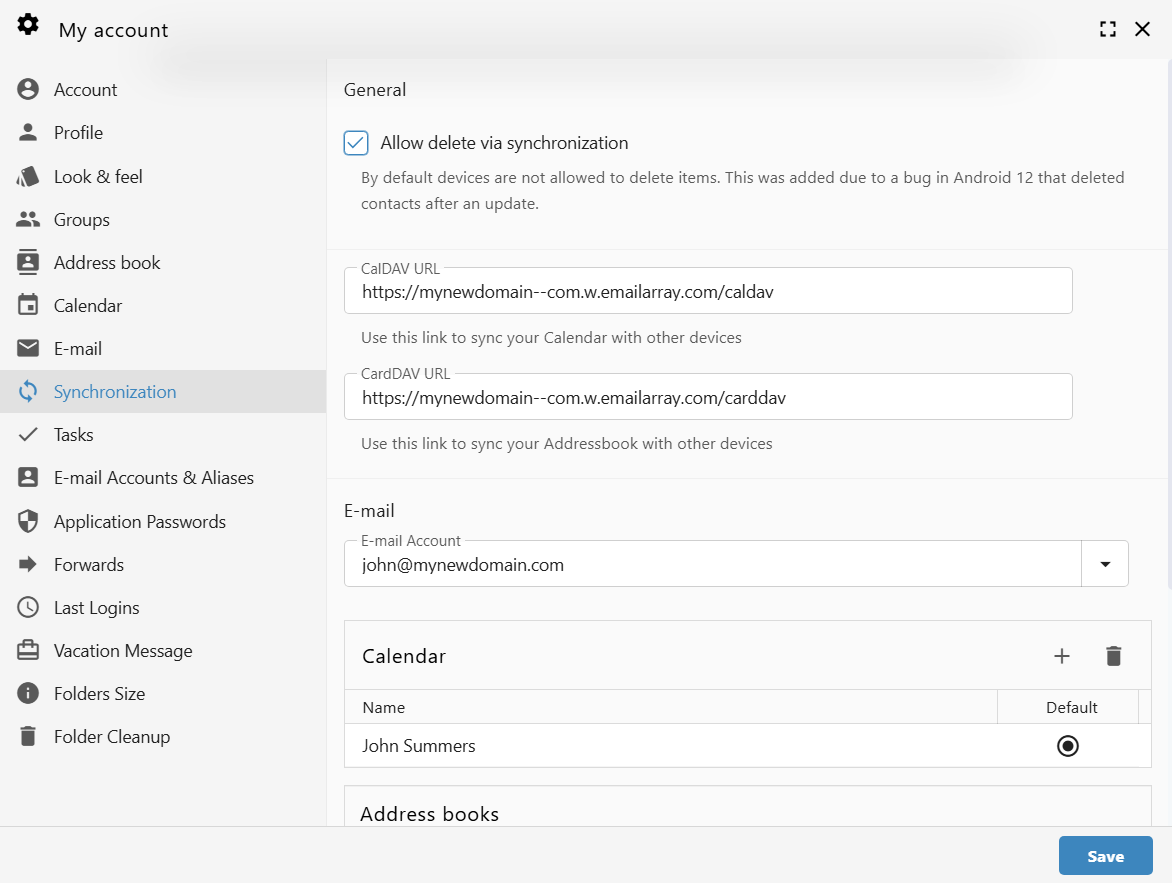
The URLs usually look like these examples:
- Calendar:
https://yourdomain--com.w.emailarray.com/caldav - Contacts:
https://yourdomain--com.w.emailarray.com/carddav
Use the exact URLs shown in your Webmail account. The addresses above are examples and should not be entered as your connection details.
Step 2: Add an Account on Your Device
The steps and menu names vary depending on your device and app. You may need to add your calendar and contacts as two separate accounts.
- Open your device’s Settings or the account settings in your chosen calendar or contacts app.
- Select Add Account.
- If prompted, choose Other, Manual Setup or Advanced Setup.
- Select CalDAV to connect your calendars or CardDAV to connect your contacts.
If these options are unavailable, check whether your app supports CalDAV or CardDAV. Some devices require an additional compatible synchronisation app.
Step 3: Enter Your Connection Details
Use the manual or advanced setup option where available, then enter the following:
- Username: Your full email address, such as
john@mydomain.com. - Password: Your email account password.
- Server URL: The CalDAV or CardDAV URL copied from Webmail in Step 1.
- Description: A name you will recognise, such as Work Calendar or Work Contacts.
If your app offers an SSL or secure connection option, keep it enabled.
Select Save, Finish or the equivalent option in your app. Your device will then begin synchronising. The first synchronisation may take a few minutes.
To connect both calendars and contacts, repeat the setup using the other account type and its corresponding URL.
Check That Everything Is Working
Make sure your new calendar or contacts account is enabled and visible in your app. Add a test appointment or contact to that account, then check that it appears in Webmail after synchronisation.
Having Trouble Connecting?
- Check your mailbox type: Synchronisation requires an Enhanced mailbox.
- Check your username: Enter your full email address.
- Check your password: Confirm that you can log in to Webmail with the same details.
- Check the URL: Use the exact address from Webmail, with CalDAV for calendars and CardDAV for contacts.
- Check app compatibility: Your chosen app must support the account type you are adding.
- Check where items are saved: New appointments and contacts must be saved to your Hipposerve account to synchronise through it.
If you still need help, contact Hipposerve Support with your device type, app name and any error message shown. Do not include your password.