Introduction
Manage your Hipposerve Mail calendars and contacts directly in Thunderbird, without opening Webmail. CalDAV synchronises your calendars, while CardDAV synchronises your contacts.
Changes saved to your connected Hipposerve calendar or address book are synchronised with your mailbox and other devices configured to use the same services.
Before you begin: Calendar and contact synchronisation requires an Enhanced mailbox. You will need Thunderbird installed, your full email address and your email password.
These instructions are for Thunderbird on a computer. Menu names and screen layouts may vary between versions.
Step 1: Find Your Synchronisation URLs
Your mailbox provides separate connection URLs for calendars and contacts. To find them:
- Log in to your Webmail.
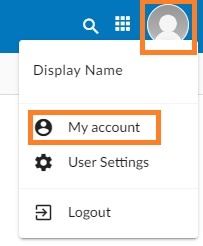
- Click your profile picture or account icon in the top corner.
- Select My Account.
- Open the Synchronization tab in the left-hand menu.
- Copy the CalDAV URL for your calendars and the CardDAV URL for your contacts.
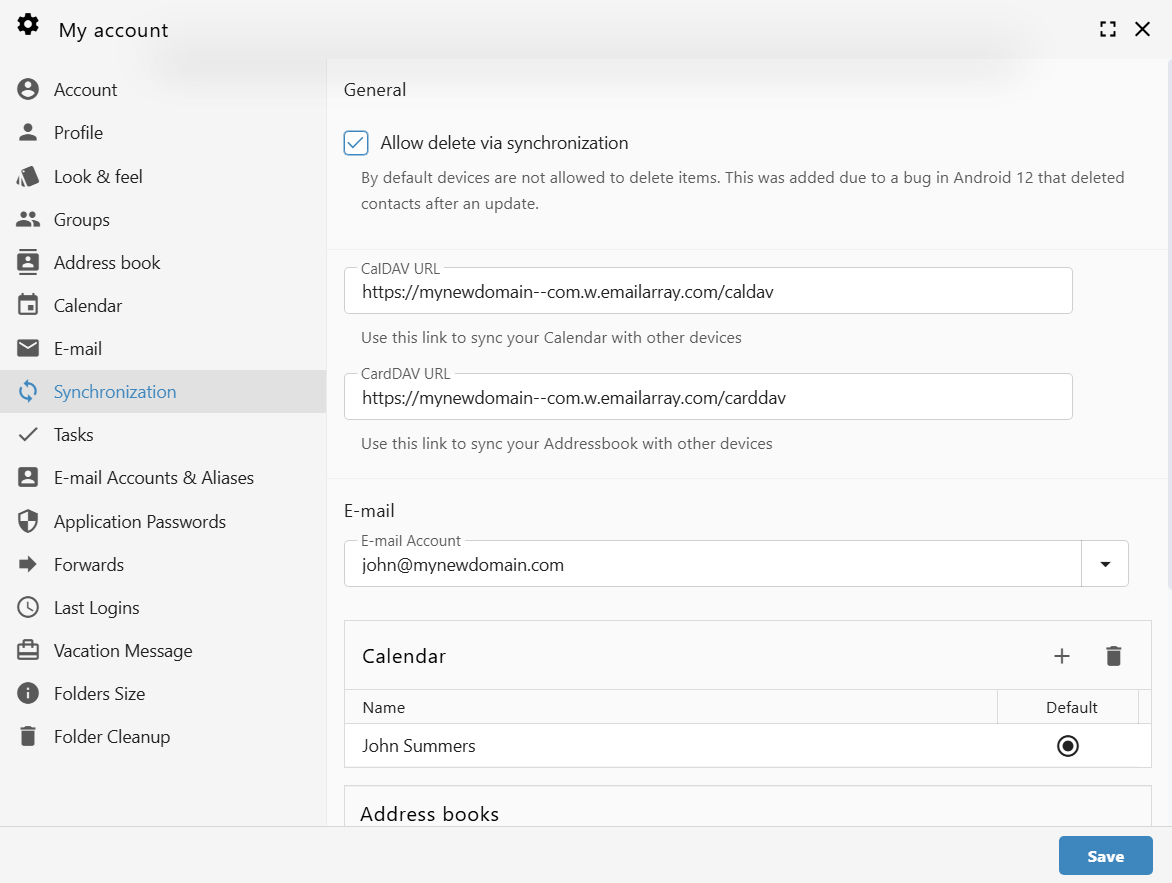
Example URL Formats
- Calendar:
https://yourdomain--com.w.emailarray.com/caldav - Contacts:
https://yourdomain--com.w.emailarray.com/carddav
Use the exact URLs shown in your Webmail account. The addresses above are examples and should not be entered as your connection details.
Step 2: Connect Your Calendar
Open the Calendar Setup
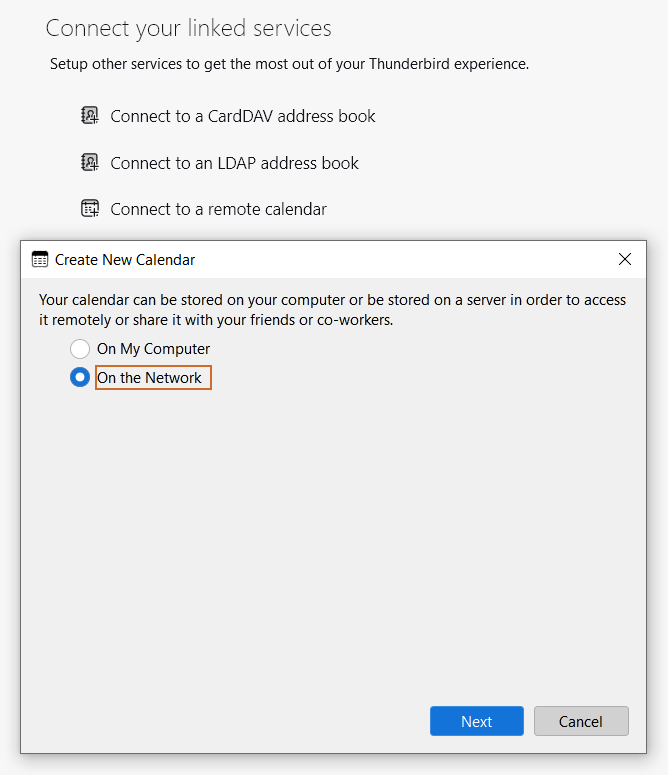
- In Thunderbird, find the Connect your linked services section.
- Click Connect to a remote calendar.
- If the Create New Calendar window appears, select On the Network and click Next.
If you cannot see the linked services section, open Thunderbird’s Calendar view and use the option to create a New Calendar, then choose On the Network.
Enter Your Calendar Connection Details
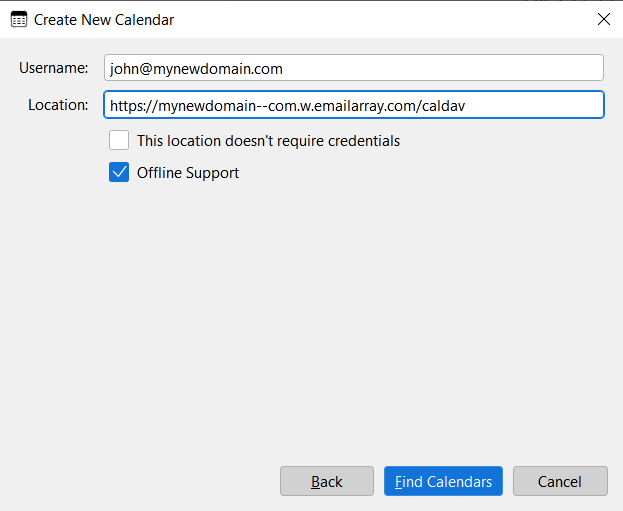
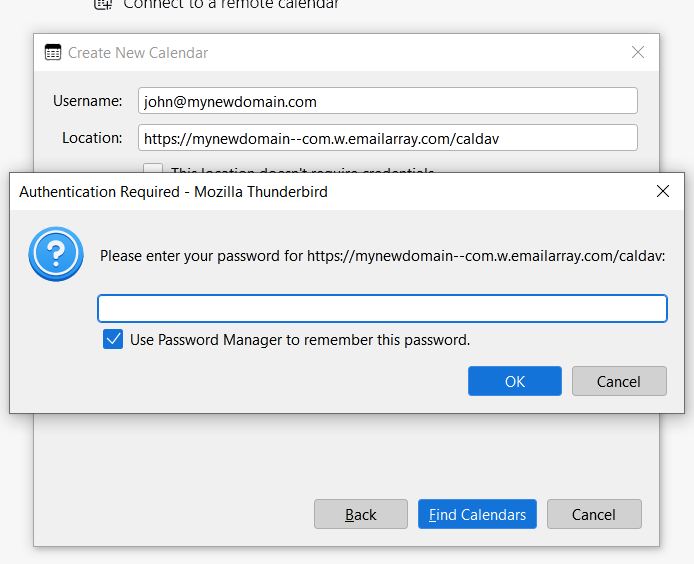
- In Username, enter your full email address.
- In Location, paste the CalDAV URL copied from Webmail.
- Click Find Calendars.
Sign In
- When prompted, enter your email account password.
- If you want Thunderbird to save your password on this computer, select Use Password Manager to remember this password.
- Confirm the sign-in prompt to continue.
Select Your Calendars
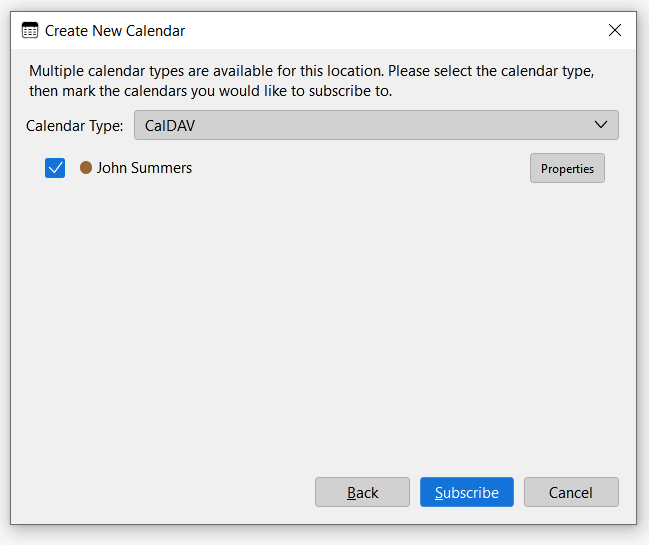
- Select the calendars you want to connect.
- Click Subscribe.
Your selected calendars will appear in Thunderbird. Allow a few minutes for the first synchronisation to complete.
Step 3: Connect Your Contacts
Open the Address Book Setup
In the Connect your linked services section, click Connect to a CardDAV address book.
If this section is unavailable, open Thunderbird’s Address Book and look for Add CardDAV Address Book in the new address book options.
Enter Your Contact Connection Details
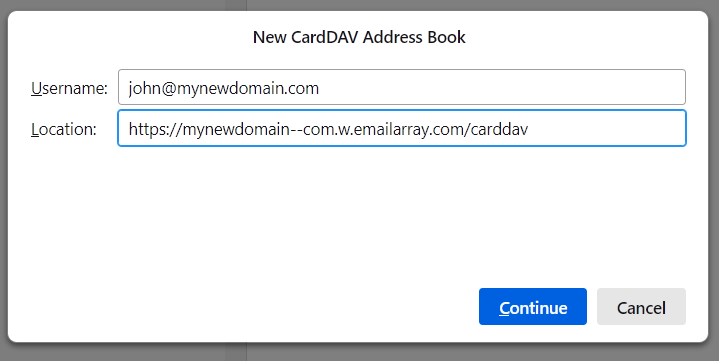
- In Username, enter your full email address.
- In Location, paste the CardDAV URL copied from Webmail.
- Click Continue.
Sign In and Complete the Setup
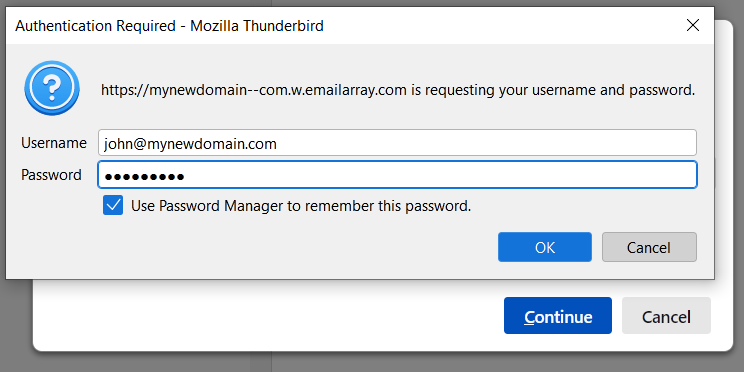
- When the Authentication Required window appears, check that the username is your full email address.
- Enter your email account password.
- If you want Thunderbird to save your password on this computer, select the option to remember it.
- Click OK and follow any remaining prompts to finish connecting your address book.
Your connected address book will appear in Thunderbird and begin synchronising your contacts.
Check That Everything Is Working
- Calendar: Create a test appointment in your connected Hipposerve calendar in Thunderbird, then check that it appears in Webmail.
- Contacts: Add a test contact to your connected Hipposerve address book, then check that it appears in Webmail.
- Other devices: Check that the changes appear on devices configured to use the same Hipposerve calendar and address book.
Choose the correct calendar or address book: Items saved to a local calendar or local address book stay on that computer. Save new appointments and contacts to your connected Hipposerve calendar or address book to synchronise them.
Having Trouble Connecting?
- Check your mailbox type: Calendar and contact synchronisation requires an Enhanced mailbox. If the Synchronization tab is missing from Webmail, contact Hipposerve Support to confirm your mailbox type.
- Check your username: Enter your full email address.
- Check your password: Confirm that you can sign in to Webmail with the same password.
- Check the connection URL: Use CalDAV for calendars and CardDAV for contacts. Copy the exact URL from Webmail and remove any extra spaces.
- Check your calendar selection: Make sure the connected calendar is enabled and visible in Thunderbird.
- Allow time to synchronise: The first synchronisation may take a few minutes, particularly if you have many contacts or appointments.
Already receiving email in Thunderbird? An IMAP connection synchronises email only. You still need to connect CalDAV and CardDAV separately to synchronise your calendars and contacts.