Introduction
Keep your email, calendars and contacts up to date across compatible devices with Hipposerve Mail. Exchange ActiveSync (EAS) connects your mailbox to a supported app and uses push synchronisation to deliver updates promptly.
Changes made on one connected device are synchronised with your mailbox and other connected devices. For example, deleting an email on your phone also removes it from your mailbox, while adding an appointment to your Hipposerve calendar makes it available on your other connected devices.
Some compatible apps also support synchronising notes. Available features and synchronisation speed depend on your device, app and connection.
Before you begin: ActiveSync is a premium feature available with Enhanced mailboxes. Your chosen app must support Exchange ActiveSync.
What You Will Need
- Your full email address: For example,
john@mydomain.com. - Your email password: The same password you use to sign in to Webmail.
- A compatible device or app: It must support Exchange ActiveSync.
- Your server address: Required if automatic setup is unavailable. See the manual setup instructions below.
Tip: If Autodiscover is configured in your domain’s DNS settings, compatible apps may find your server settings automatically. For details, see the Autodiscover DNS configuration guide. You can still use manual setup if Autodiscover is unavailable.
Option 1: Automatic Setup with Autodiscover
Try this option first if your domain has Autodiscover configured. Menu names may vary depending on your device and app.
Step 1: Add an Exchange Account
- Open your device’s Settings or the account settings in your email app.
- Go to Mail or Accounts, then select Add Account.
- Choose Exchange, Microsoft Exchange or ActiveSync.
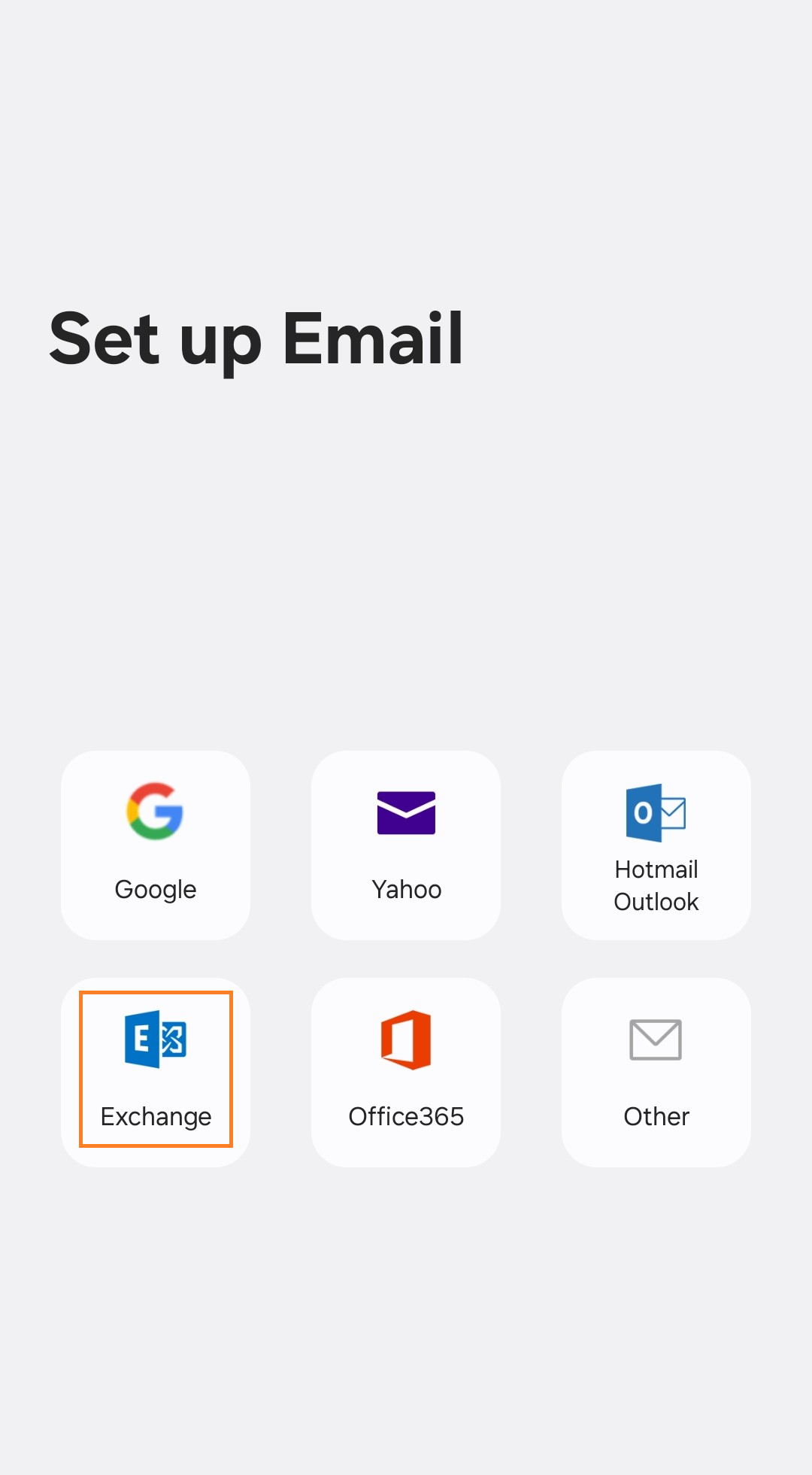
Step 2: Enter Your Account Details
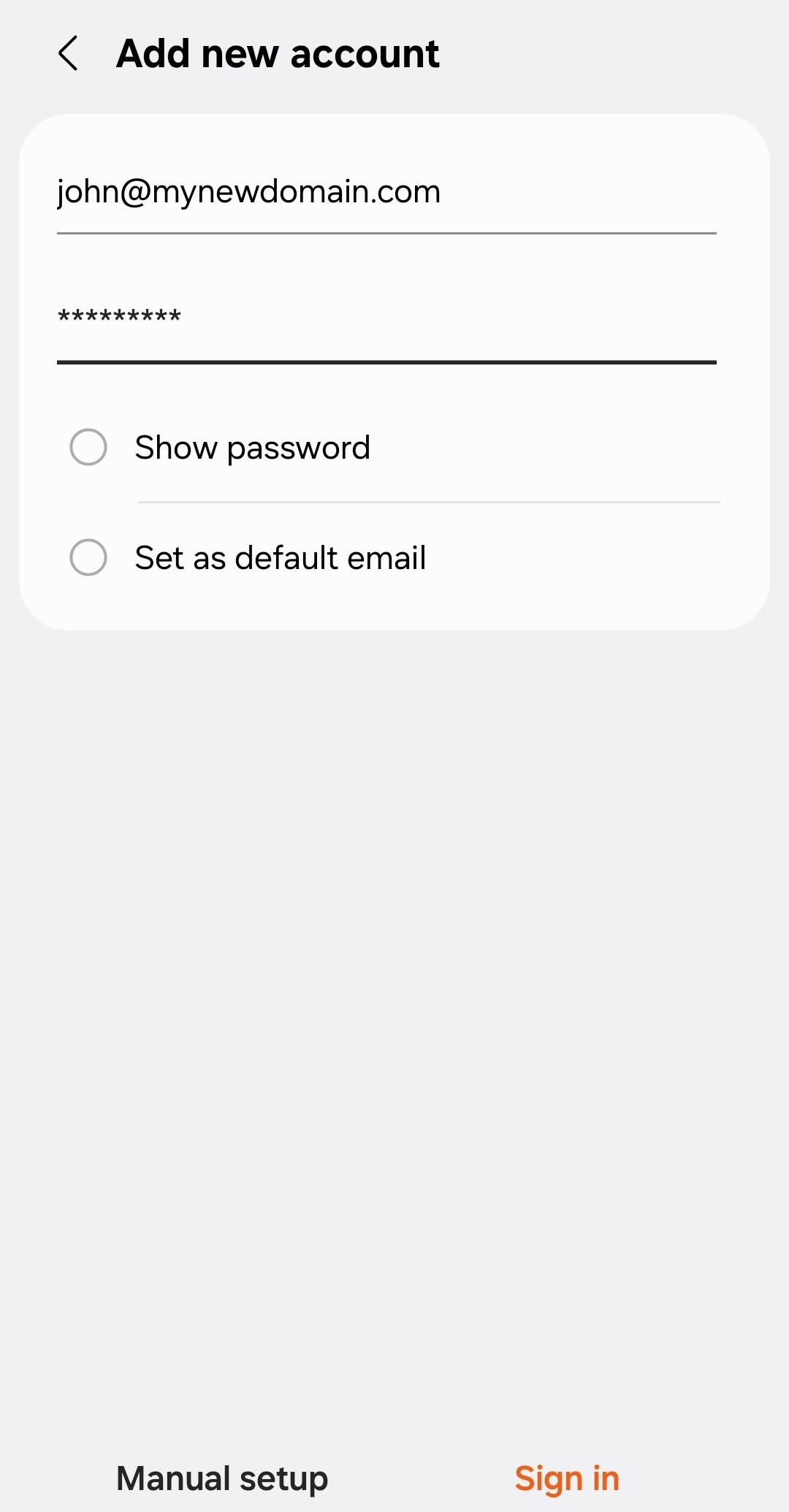
- Enter your full email address and email password when prompted.
- Select Sign In, Next or the equivalent option in your app.
- If Autodiscover succeeds, follow the remaining prompts to complete the setup.
If your app asks for a server address or cannot find your settings, use the manual setup instructions below.
Option 2: Manual Setup
Use manual setup if automatic setup is unavailable or your app asks you to enter the server details.
Step 1: Add an Exchange Account
- Open your device’s Settings or the account settings in your email app.
- Go to Mail or Accounts, then select Add Account.
- Choose Exchange, Microsoft Exchange or ActiveSync.
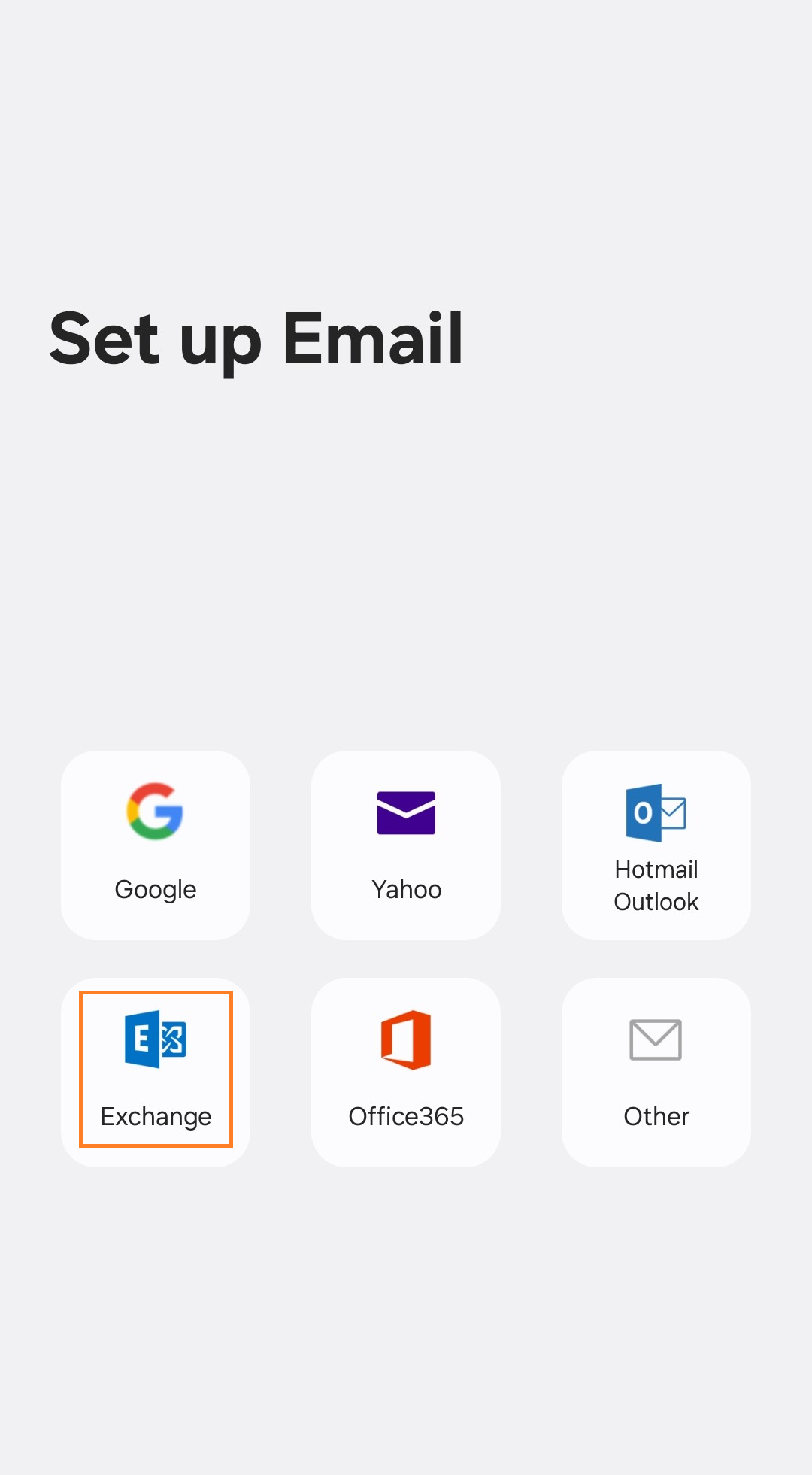
Step 2: Choose Manual Setup
- Enter your full email address.
- Enter your email password when prompted.
- Select Manual Setup or the equivalent option in your app.
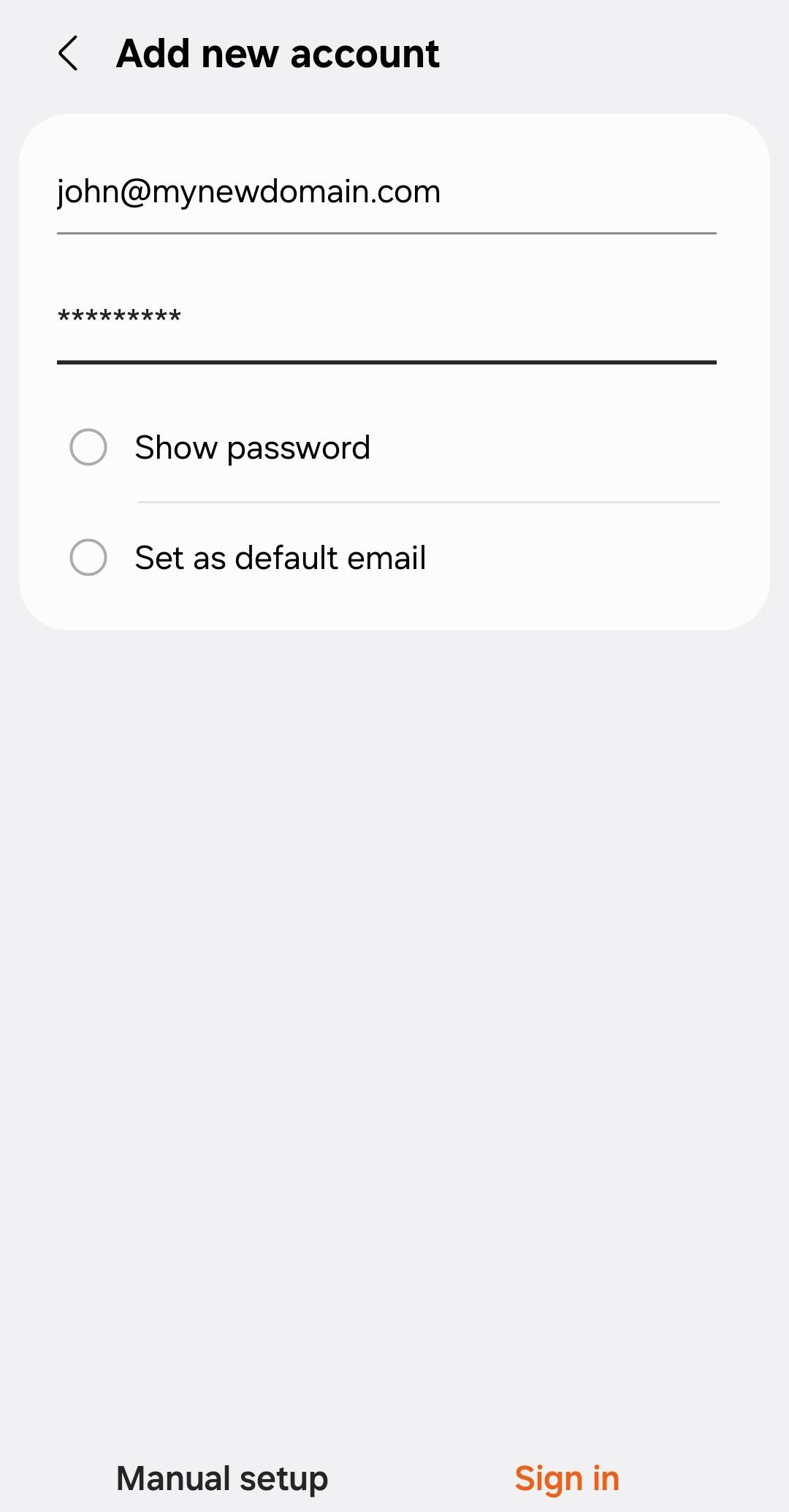
Step 3: Enter Your Server Settings
- Server: Your domain’s server address, using the format
yourdomain--com.w.emailarray.com. - Domain: Leave this blank unless your device specifically requires a value.
- Username: Your full email address.
- Password: Your email account password.
- SSL / secure connection: Enabled.
To work out your server address:
- Take the domain name after the @ in your email address.
- Replace each dot (
.) with two hyphens (--). Keep any existing hyphens unchanged. - Add
.w.emailarray.comto the end.
For example, if your email address is john@my-company.com, your server address is:
my-company--com.w.emailarray.comEnter the server address as a hostname, without https:// or a trailing slash.
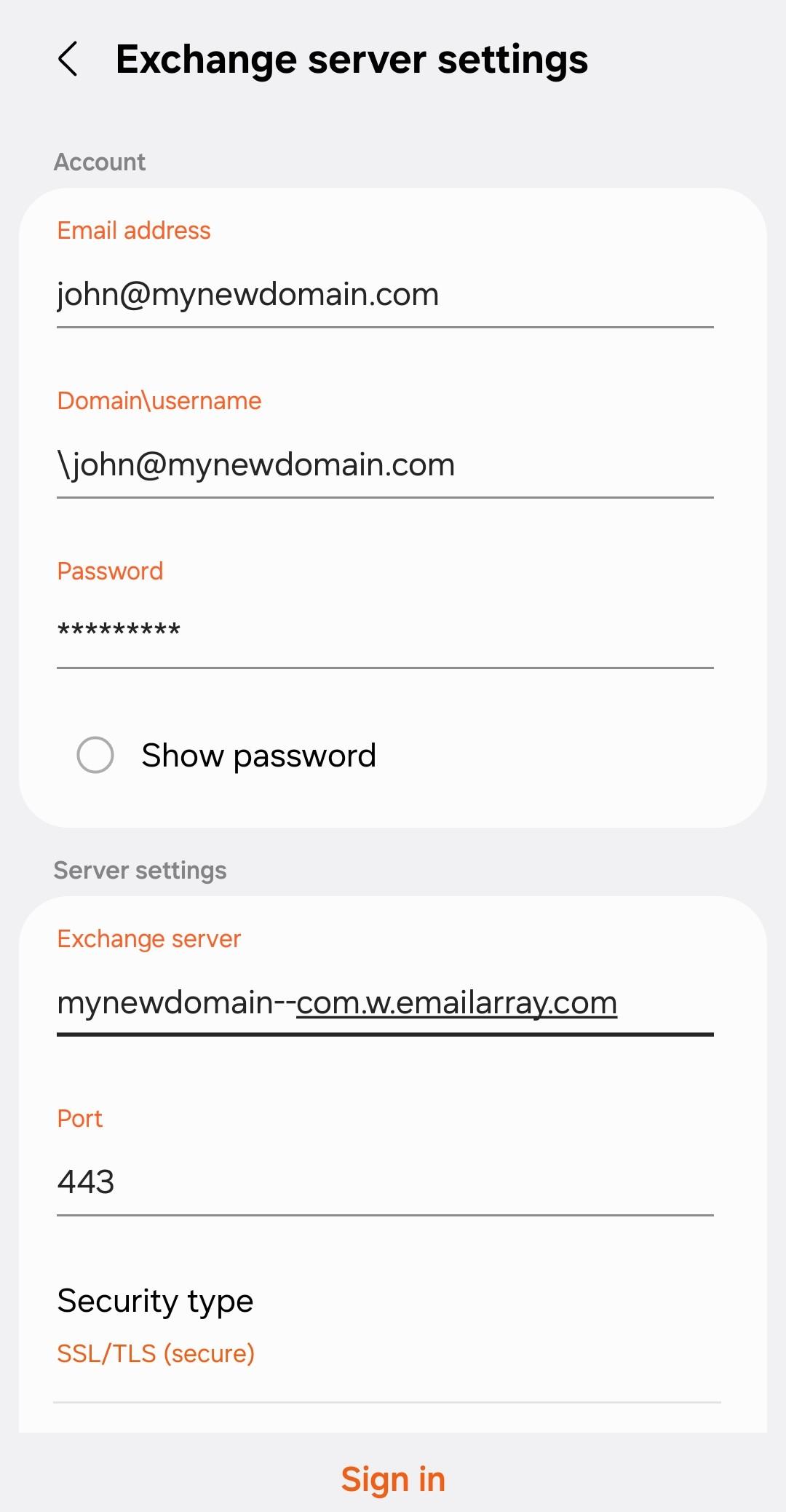
Select Sign In, Continue or Finish to complete the connection.
Choose What to Synchronise
If your app offers synchronisation options, enable the items you want to use, such as Email, Calendars and Contacts. Notes may also be available in supported apps.
Save your choices and allow a few minutes for the first synchronisation to complete. Larger mailboxes may take longer.
Check That Everything Is Working
- Email: Send a test message to your address and check that it arrives in your app.
- Calendar: Create a test appointment in your Hipposerve calendar and check that it appears in Webmail.
- Contacts: Add a test contact to your Hipposerve account and check that it appears in Webmail.
Make sure new appointments and contacts are saved to your Hipposerve account so they can synchronise with your mailbox.
Having Trouble Connecting?
- Check your mailbox type: ActiveSync requires an Enhanced mailbox.
- Check your login details: Use your full email address and confirm that the same password works in Webmail.
- Check the account type: Choose Exchange or ActiveSync to synchronise email, calendars and contacts together.
- Check your server address: Replace every dot in your domain with two hyphens, then add
.w.emailarray.com. - Check your secure connection settings: SSL must be enabled.
- Try manual setup: If automatic setup fails, enter the server settings yourself.
- Check synchronisation settings: Make sure the items you want to synchronise are enabled in your app.
If you still need help, contact Hipposerve Support with your device type, app name and any error message shown. Do not include your password.