




















































 Si të Përdorni Widget-in e Imazheve në Hipposerve® Studio
Widget-i Picture në Hipposerve® Studio ju lejon të shtoni imazhe, fotografi, grafika dhe përmbajtje vizuale në faqen tuaj të internetit. Imazhet ndihmojnë për t’i dhënë jetë faqeve, për të rritur angazhimin dhe për të krijuar një pamje më profesionale.
Mund të ngarkoni imazhet tuaja, të përdorni imazhe nga galeria falas ose të personalizoni imazhet me efekte si bordura, hije, prerje dhe lidhje të klikueshme.
 Shtimi i një Imazhi
Për të shtuar një imazh në faqen tuaj:
- Tërhiqni dhe lëshoni widget-in Picture nga shiriti kryesor i veglave në faqen tuaj.
- Zgjidhni paraqitjen ose kompozimin e imazhit që dëshironi të përdorni.
- Zgjidhni një imazh nga galeria falas ose ngarkoni imazhin tuaj.
 Redaktimi i një Imazhi
Pasi të jetë shtuar një imazh, mund ta zëvendësoni ose përditësoni lehtësisht.
Për të redaktuar një imazh:
- Zgjidhni imazhin në faqen tuaj.
- Klikoni Change Picture në shiritin kontekstual të veglave.
Më pas mund të zgjidhni një imazh duke përdorur një nga opsionet e mëposhtme:
- Upload New Picture: Ngarkoni një imazh nga pajisja juaj.
- Free Gallery: Kërkoni në galerinë falas për imazhe.
- Picture URL: Importoni një imazh direkt duke përdorur adresën e tij në internet.
 Personalizimi i Imazhit Tuaj
Widget-i Picture përfshin disa mjete për t’ju ndihmuar të personalizoni pamjen e imazheve tuaja.
 Prerja
Përdorni mjetin e prerjes për të ndryshuar zonën e dukshme të imazhit duke ndryshuar madhësinë ose pozicionin e zonës së prerjes.
Klikoni ikonën e shenjës së kontrollit për të ruajtur ndryshimet.
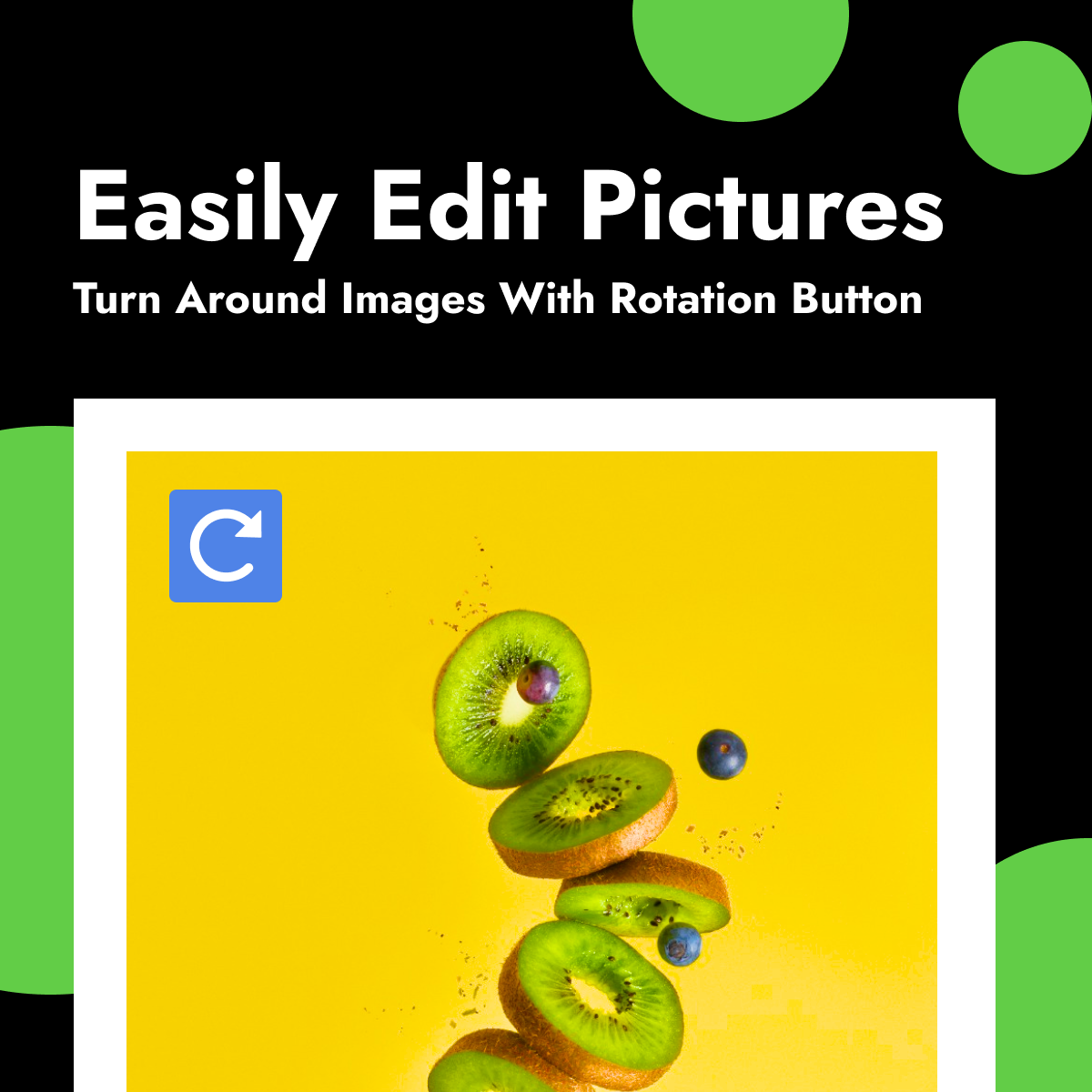
 Rrotullimi
Përdorni mjetin e rrotullimit për ta kthyer imazhin në drejtim të akrepave të orës.
 Transparenca
Rregulloni nivelin e transparencës së imazhit duke përdorur shiritin e djathtë të veglave.
 Teksti Alternativ
Shtoni tekst alternativ (alt text) për të përshkruar imazhin për aksesueshmëri dhe motorët e kërkimit.
 Bordurat
Klikoni ikonën e cilësimeve të bordurës ( ) në shiritin e djathtë të veglave për të personalizuar gjerësinë, ngjyrën dhe stilin e bordurës.
Mund të aplikoni gjithashtu stile të ndryshme bordurash për qoshe individuale.
 Hijet
Hijet
Klikoni ikonën e cilësimeve të hijes () në shiritin e djathtë të veglave për të personalizuar madhësinë, turbullimin, ngjyrën dhe distancën e hijes.
 Veprimet me Klikim
Mund të zgjidhni se çfarë ndodh kur vizitorët klikojnë mbi një imazh.
Opsionet përfshijnë zmadhimin e imazhit ose hapjen e një lidhjeje URL të personalizuar.
 Madhësia e Imazhit
Rregulloni gjerësinë dhe lartësinë e imazhit duke përdorur kontrollet e madhësisë.
 Shembull Pamjeje
Imazhi më poshtë tregon kontrollet e rrotullimit të imazheve brenda Hipposerve® Studio.