Using the Gallery List Widget in Hipposerve® Studio
The Gallery List widget displays images and videos in a structured list format, making it ideal for portfolios, product catalogues, team profiles, case studies and content collections where visitors may wish to browse items one at a time.
Gallery List layouts combine images with titles, descriptions and links, creating an organised and informative presentation style.
 Adding a Gallery List
To add a Gallery List widget to your website:
- Drag and drop the Gallery widget from the main toolbar.
- Select the List Gallery layout.
- Select the gallery and click the picture editing icon (
 ) in the right-hand toolbar.
 - Click Add Pictures to upload your images.
- Click Size in the right-hand toolbar.
- Set a gallery size manually or enable Allow to adjust size automatically.
 Managing Gallery Content
You can add additional information to every gallery item.
To edit gallery images:
- Select the gallery.
- Click the pictures icon () in the right-hand toolbar.
- Add or edit image titles, links, addresses and descriptions.
 Display Options
 Disable Image Enlargement
Enable this option if you do not want images to enlarge when visitors click on them.
 Background Settings
Select the gallery and click the background settings icon in the right-hand toolbar to customise background colour and opacity.
 Image Filling
Choose how images fit within the available display area:
- Fit: Displays the entire image within the available space.
- Fill: Expands the image to fill the available area completely.
 Thumbnail Settings
You can customise the appearance of gallery thumbnails.
Available settings include:
- Thumbnail width
- Thumbnail height
- Thumbnail padding and spacing
These settings help control the overall layout and appearance of your gallery.
 Slideshow Controls
The Gallery List widget can automatically cycle through gallery items.
You can configure:
- Picture change frequency
- Transition duration
- Animation timing
 Captions and Descriptions
The Gallery List widget supports image captions and descriptions.
You can customise:
- Caption visibility
- Caption background colour
- Text styling and formatting
To include image descriptions:
- Add a description for each image inside the Gallery Media Manager.
- Click Apply.
- Open the Caption section in the right-hand toolbar.
- Enable Include Description.
 Lightbox Settings
When visitors click an image, it can be displayed inside a lightbox overlay.
You can customise the appearance of the lightbox, including the background colour shown behind enlarged images.
 Video Support
The Gallery List widget also supports video uploads, allowing images and videos to be displayed together within the same gallery.
This makes it suitable for multimedia presentations, product demonstrations, training materials and promotional content.
 Preview Example
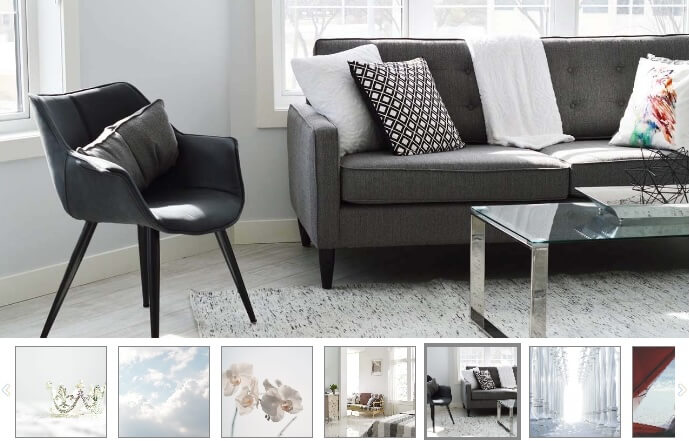
The Gallery List layout presents images and videos in a clean, organised format, making it easy for visitors to browse content while maintaining a professional appearance.