
























































Introduction
If you need to make changes to your website, we recommend returning to your chosen AI model, such as ChatGPT, Claude or Gemini, making your changes there, generating a new ZIP file and uploading it using the standard AI Ignite upload process.
This approach is the safest and most reliable because it keeps all of your website files together and allows AI Ignite to perform its compatibility and security checks before publishing your updated website.
It also allows you to take advantage of AI Ignite's ZIP rollback feature, making it easy to restore a previous version of your website if you're not happy with your latest changes.
If you only need to make a quick change to an HTML, CSS or JavaScript file, you can edit your website directly using the File Manager.
Step 1: Open the File Manager
From your Website Management page, click File Manager.
Open the public_html folder, which contains your live website files.
Step 2: Open a File for Editing
Locate the file you wish to edit, right-click it and choose one of the available file editors.
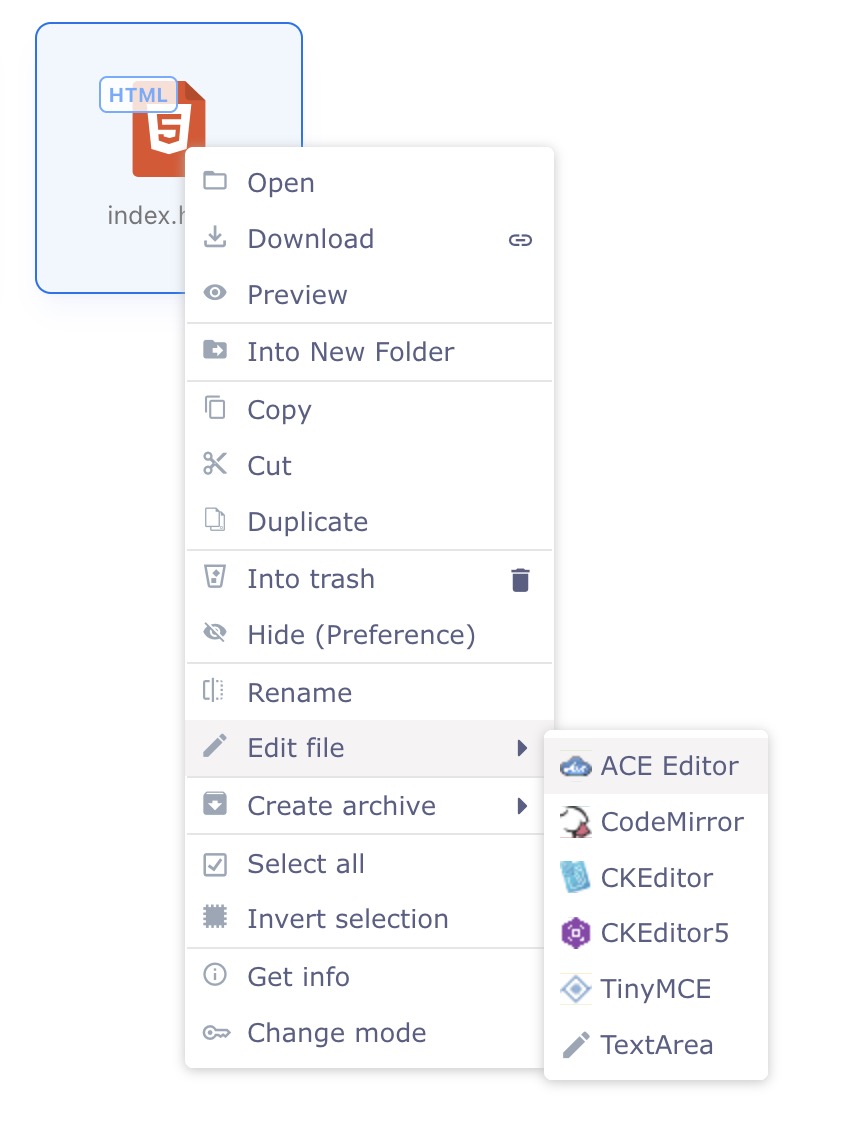
All of the available editors allow you to edit your website files. The choice of editor is simply a matter of personal preference.
Step 3: Make Your Changes
Edit the contents of your file as required.
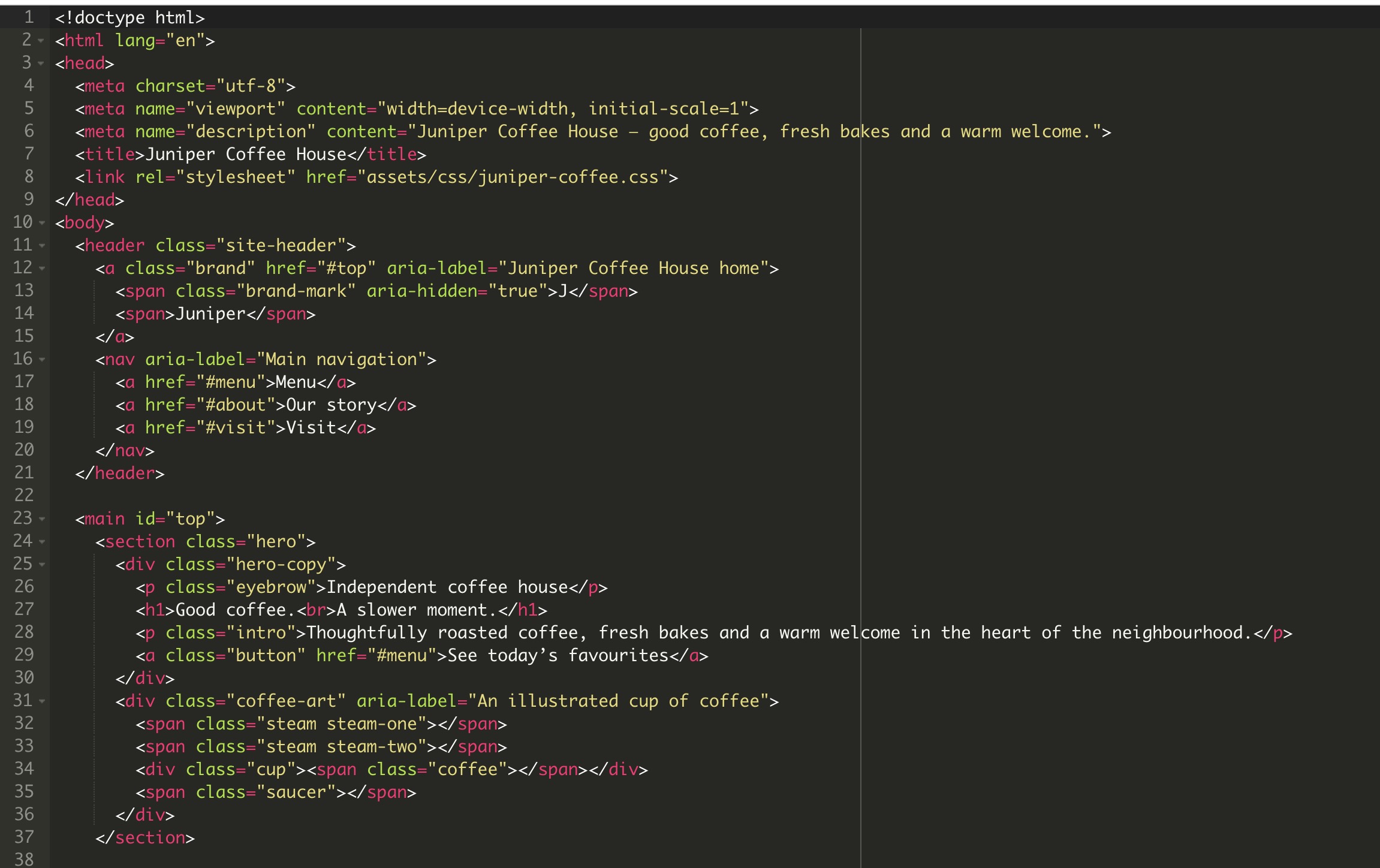
When you've finished making your changes, click the Save button to write the updated file back to your hosting account.
Step 4: View Your Changes
Your changes are published immediately after the file has been saved.
Simply refresh your website in your web browser to view the updated content.
If Something Goes Wrong
Everyone makes mistakes from time to time, especially when editing HTML, CSS or JavaScript by hand.
If your website doesn't display correctly after editing a file, don't panic. There are several ways to recover.
- If your website was originally published using a ZIP upload, you can simply upload the previous ZIP file again or use the AI Ignite ZIP rollback feature to restore an earlier version.
- If you don't have a previous ZIP available, you may be able to restore your website using Hipposerve® Rewind, provided backups are available for your hosting plan.
For more information about Hipposerve Rewind, see:
https://hipposerve.com/knowledgebase/4702/10---Hipposerve-Rewind
Our Recommendation
Whenever possible, make your website changes within your chosen AI model and upload a new ZIP file rather than editing files directly on the server.
This keeps your AI project, source files and live website in sync, provides access to AI Ignite's rollback feature and greatly reduces the risk of accidental errors.
If you do choose to edit files directly using the File Manager, we strongly recommend downloading a copy of the file first so you have a backup that can be restored if needed.
Support for Manual File Editing
While we're always happy to help with questions about AI Ignite and your hosting service, we aren't able to provide support for editing, debugging or repairing website code that has been modified manually.
Once you begin editing your website files directly, you're responsible for ensuring the changes are correct and for restoring your website if those changes cause problems.
For this reason, we strongly recommend downloading a copy of any file before editing it, or preferably making your changes within your chosen AI model and uploading a new ZIP file instead. This provides a much safer workflow and allows you to benefit from AI Ignite's automated checks and ZIP rollback feature.
If your website does stop working after manual editing, you can usually recover by restoring a previous ZIP upload or by using Hipposerve® Rewind, if backups are available for your hosting plan.


