Introduction
Publishing your AI-generated website with AI Ignite is quick and straightforward. Simply prepare your website, upload it as a ZIP file and let AI Ignite perform its automated compatibility and security checks before your website is published.
For most websites created with ChatGPT, Claude, Gemini and similar AI tools, this process only takes a few minutes.
Step 1: Prepare Your Website
Before uploading your website, ask your chosen AI model to prepare your website for AI Ignite.
Your website should be exported as a single ZIP file containing all of your website files. The index.html file should be located in the root of the ZIP archive, with all images, CSS and JavaScript files using relative paths.
For more complex websites with multiple nested folders or unusual project structures, the automatic uploader may not always be suitable. In these cases you can upload your files manually by following this guide:
Manually Uploading Files to Your AI Ignite Hosting
https://hipposerve.com/knowledgebase/5023/Manually-Uploading-Files-to-Your-AI-Ignite-Hosting.html
Example AI Prompt
You can ask your AI model to prepare your website using a prompt such as:
Please prepare this website for Hipposerve AI Ignite. Ensure the website is completely static, remove any server-side code such as PHP or Node.js, use relative paths throughout, place index.html in the root folder and package everything into a ZIP file ready for upload.
Step 2: Upload Your Website
Open the AI Ignite Management page from your hosting service, or click Upload Your Website immediately after completing your order.
Click the Upload Your Site button.

Step 3: Select Your ZIP File
Drag and drop your website ZIP file into the Release Your Site panel, or click to browse and select the ZIP file from your computer.
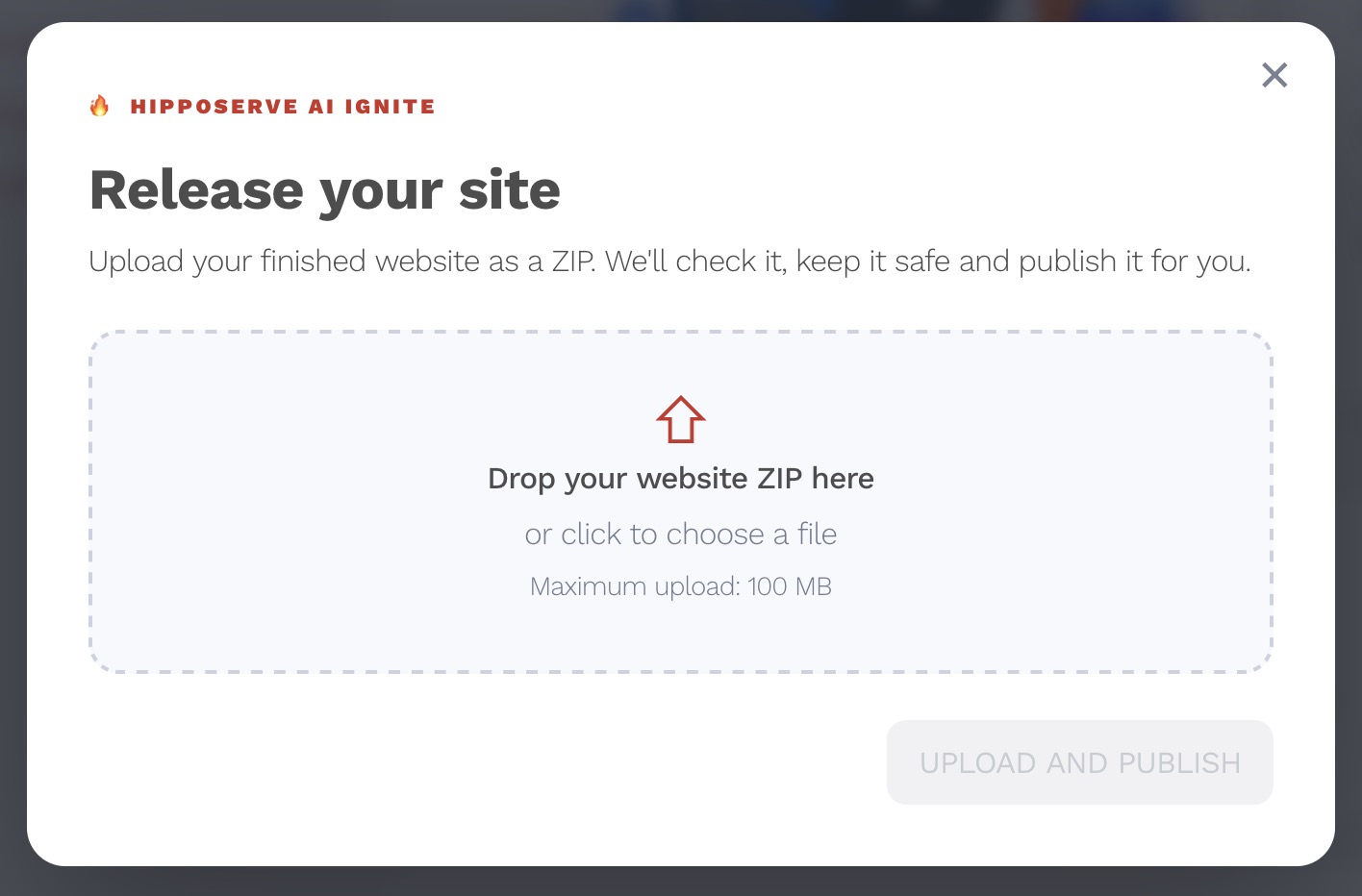
Once selected, AI Ignite will upload your website securely to our servers.
Step 4: Automatic Website Checks
After your website has been uploaded, AI Ignite automatically performs a series of compatibility and security checks before anything is published.
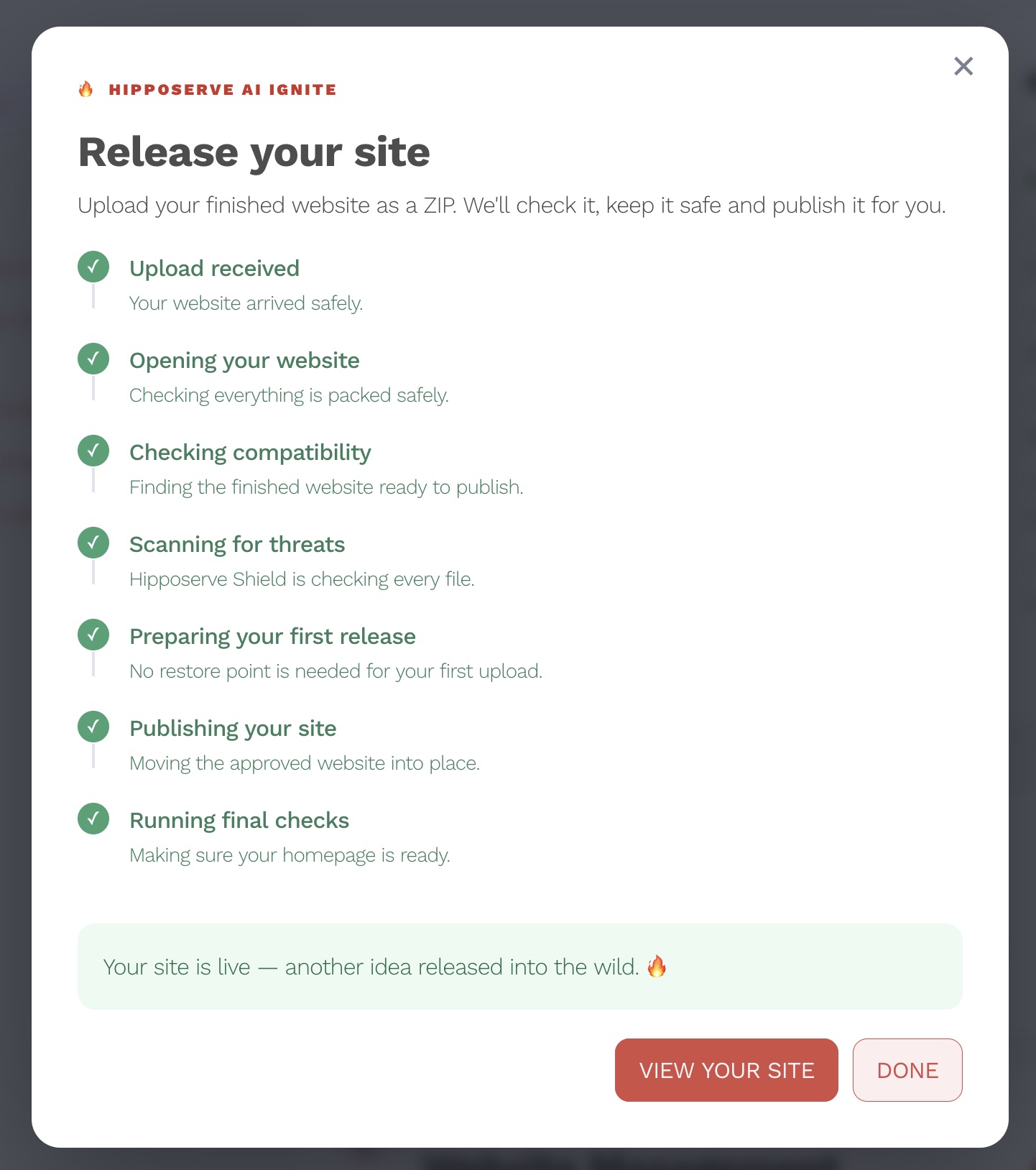
These checks include:
- ZIP archive validation
- Website structure verification
- Checking for an index.html file
- Detection of unsupported server-side files
- Security and malware scanning
- Validation of the website contents
If all checks are successful, your website will be published automatically.
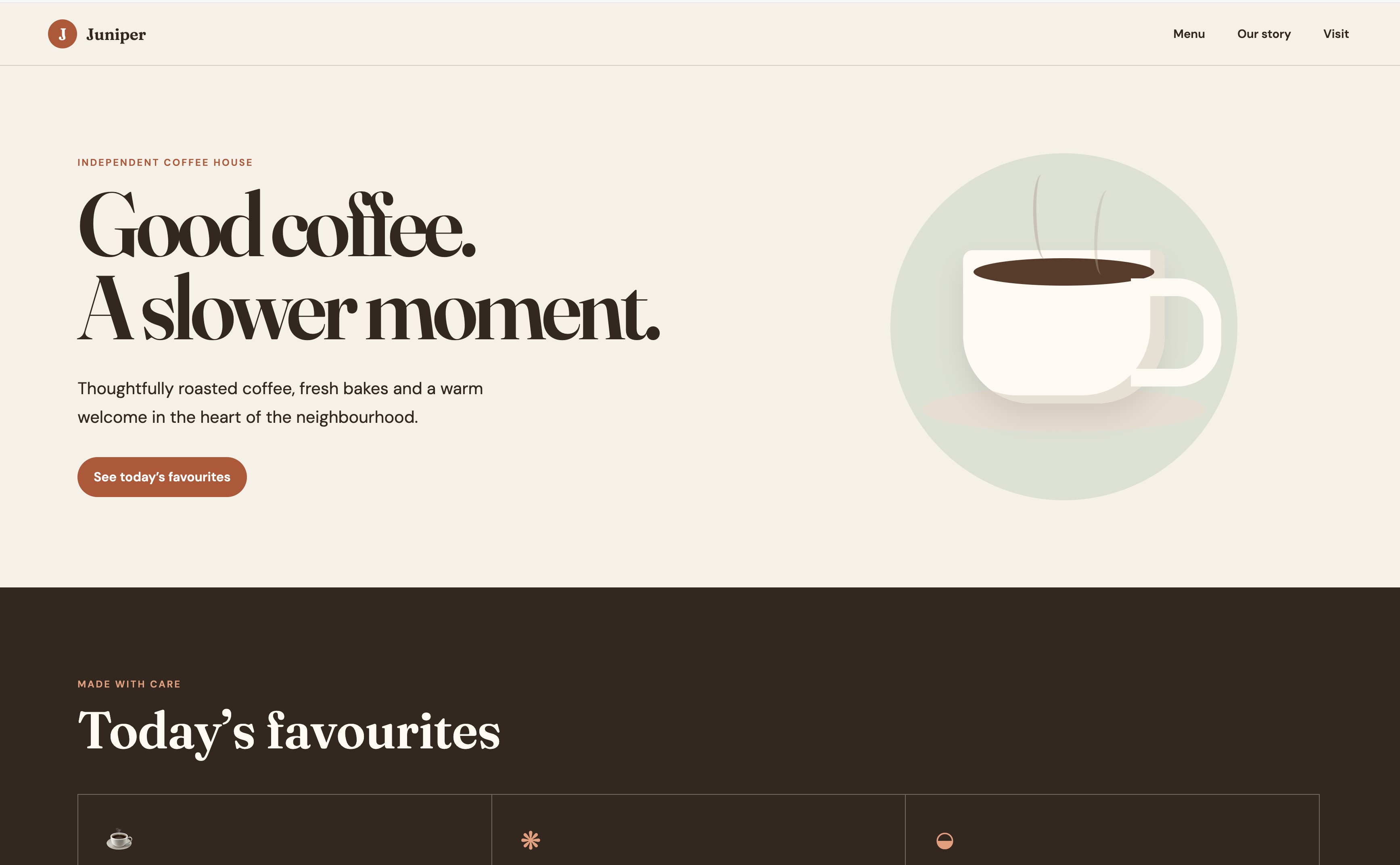
You'll then be presented with a success screen where you can immediately view your live website.
Important
If you're using a free HippoSites domain or a new domain purchased during signup, your website should be available almost immediately.
If you're using an existing domain name, you'll first need to update its DNS settings so that it points to your AI Ignite hosting account. Until your DNS changes have propagated, your existing website (or no website at all) may continue to be displayed.
If you need any assistance updating your DNS records, visit:
https://help.hipposerve.com
Our support team will be happy to guide you through the process.
Step 5: If Your Upload Doesn't Pass
If your website doesn't pass AI Ignite's validation checks, don't worry. Nothing will be published and you'll be shown the reason why the upload was rejected.
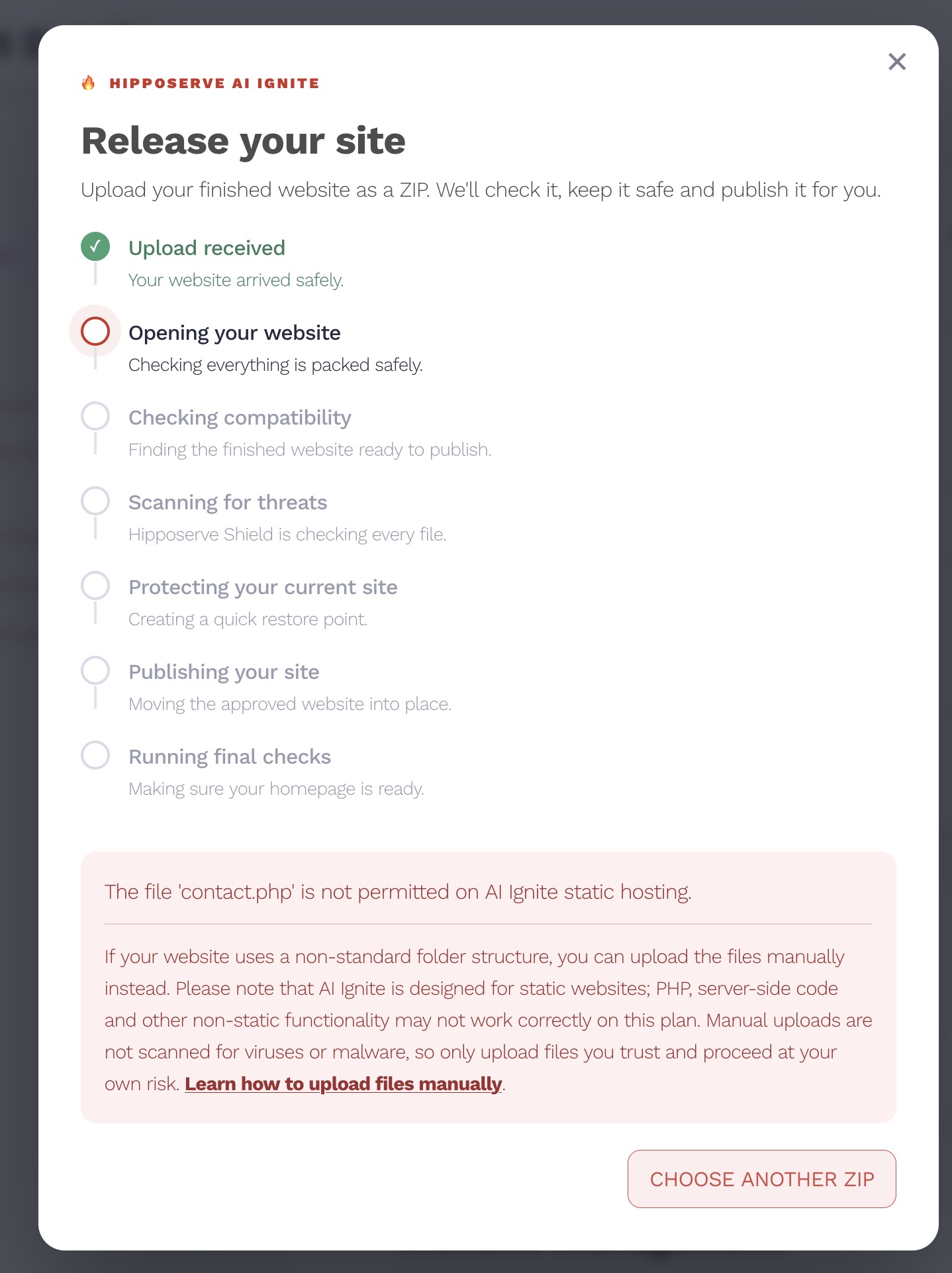
Common reasons include:
- Missing index.html
- PHP or other unsupported server-side files detected
- Malicious or suspicious files found
- The uploaded file is not a valid ZIP archive
- The ZIP structure is invalid
- Required website files are missing
In most cases your AI model can correct the problem for you.
Example AI Prompt
If your upload fails, try asking your AI model:
My website failed validation on Hipposerve AI Ignite because: [paste the error message here]. Please correct the problem, ensure the website is fully static, remove any unsupported technologies, keep index.html in the root folder, use relative paths throughout and generate a new ZIP file ready for upload.
Uploading More Complex Websites
Some websites generated by AI tools use deeply nested folders, unusual directory structures or project layouts that aren't suitable for the simple uploader.
In these situations you may still be able to host your website by uploading the files manually.
Please note that manual uploads bypass AI Ignite's automatic compatibility and security checks. This means your files won't be automatically validated for issues such as missing files, unsupported technologies or potentially malicious content before they are published.
For this reason, we recommend using the automatic uploader whenever possible, as it helps identify common issues before your website goes live.
If you choose to upload your files manually, you're responsible for ensuring your website is safe, complete and compatible with AI Ignite.
If you're unsure whether your website is suitable for a manual upload, we recommend asking your AI model to prepare a standard AI Ignite ZIP package instead.
For full instructions on manually uploading your website, please see:
Manually Uploading Files to Your AI Ignite Hosting
https://hipposerve.com/knowledgebase/5023/Manually-Uploading-Files-to-Your-AI-Ignite-Hosting.html