
























































Managing Your WordPress Plugins
WordPress plugins add features and functionality to your website. Keeping them properly managed and up to date is important for the security, performance, and reliability of your site.
Hipposerve® WordPress Manager allows you to install, update, activate, deactivate, and remove plugins without signing in to the WordPress dashboard itself. If you manage several WordPress websites, you can manage the plugins for each installation from one convenient place in your Hippo Panel.
The plugin-management tools are also useful when troubleshooting a WordPress problem. You can temporarily deactivate individual plugins to help identify compatibility issues or conflicts.
Access WordPress Manager
If you need help opening WordPress Manager, please see our guide to accessing WordPress Manager.
Open the Plugin Manager
- Locate the WordPress website you want to manage.
- Click the down arrow next to the installation status to expand its management panel.
- Click Manage Plugins.

View Your Installed Plugins
Select the Installed tab to see the plugins currently installed on the selected WordPress website.
The list displays:
- The name of each plugin.
- The installed plugin version.
- Whether the plugin is active or inactive.
- Whether an update is available.
- The option to remove the plugin.

Update a Plugin
If an update is available, an update symbol will appear next to the plugin’s version number.
- Find the plugin you want to update.
- Click the update symbol next to its version number.
- Allow the update to finish before making any further changes.
- Check your website afterwards to make sure it is working correctly.
Keeping plugins up to date helps ensure that important security fixes, compatibility improvements, and bug fixes are installed promptly.
Important: We recommend having a recent backup before updating plugins, particularly when updating an important plugin or making changes to a live website.
Activate or Deactivate a Plugin
The toggle in the Status column shows whether a plugin is active.
- Switch the toggle on to activate the plugin.
- Switch the toggle off to deactivate the plugin.
Temporarily deactivating plugins can help identify the cause of an error or compatibility problem. Deactivate plugins one at a time and check the website after each change.
Please note: Deactivating a plugin immediately stops the features it provides. This may affect the appearance or functionality of your website.
Remove a Plugin
If a plugin is no longer required, click the trash icon next to it to remove it from the website.
Warning: Removing a plugin may also remove its settings or associated data. Confirm that you have selected the correct plugin and have a suitable backup before deleting it.
For improved security, remove plugins that you no longer use. Simply deactivating a plugin may leave its files on the website.
Install a Featured Plugin
Select the Featured tab to view a range of premium plugins included with eligible Hipposerve hosting services.
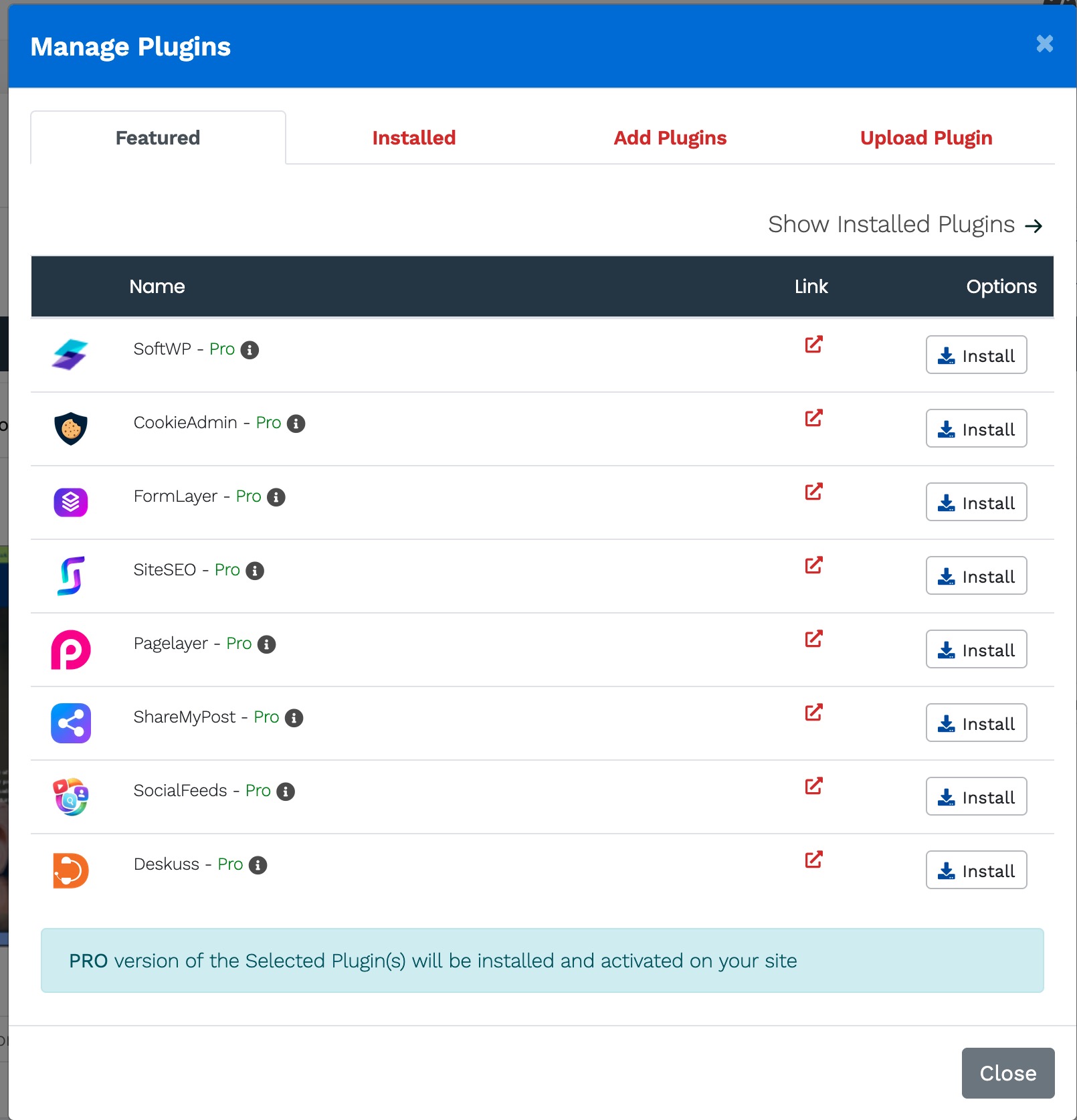
To install a featured plugin:
- Select the Featured tab.
- Find the plugin you want to use.
- Click Install.
- Allow the installation and activation to complete.
- Check and configure the plugin from your WordPress dashboard if required.
These plugins provide a range of useful tools for website design, optimisation, forms, cookies, search visibility, and social media.
Although many useful plugins are available, you should only install the ones your website needs. Installing unnecessary plugins can increase maintenance requirements, affect performance, and introduce additional security risks.
Add or Upload Other Plugins
The plugin-management window also provides the following options:
- Add Plugins allows you to find and install additional WordPress plugins.
- Upload Plugin allows you to upload a plugin package supplied as a ZIP file.
Only install plugins from developers and sources you trust. Before installing a plugin, check that it is actively maintained, compatible with your version of WordPress, and suitable for your website.
Plugin Management Recommendations
- Keep all active plugins up to date.
- Remove plugins that are no longer required.
- Only install plugins from trusted sources.
- Avoid installing multiple plugins that provide the same function.
- Take a backup before performing significant updates or removals.
- Check your website after activating, deactivating, or updating a plugin.
- Use a staging website to test major plugin changes whenever possible.
If your WordPress website is hosted by Hipposerve and you need help managing your plugins, please contact our support team. We’ll be happy to help.


