
























































Accessing WordPress Manager
WordPress Manager is available from your Hipposerve® Panel and provides one convenient place to manage your WordPress websites.
If you need help signing in, please see Accessing Your Hippo Panel.
Open WordPress Manager
- Sign in to your Hipposerve® Panel.
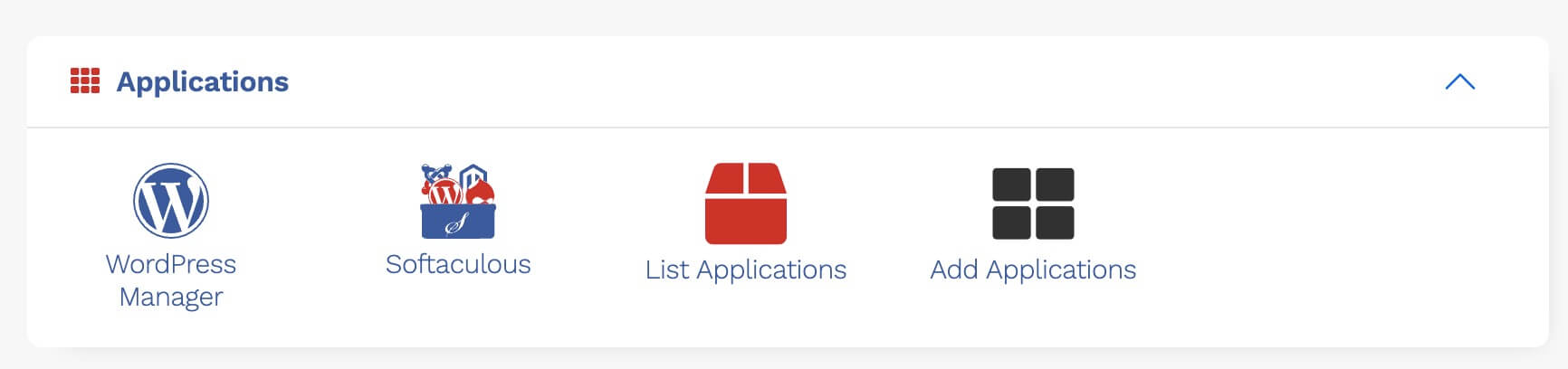
- Locate WordPress Manager.
- Click the WordPress Manager icon to open it.
Select Your WordPress Website
WordPress Manager displays the WordPress installations associated with your hosting account.
- Find the WordPress website you want to manage.
- If you manage multiple websites, check the website address and name to ensure you select the correct installation.
- Click the down arrow next to the installation status to expand its management panel.
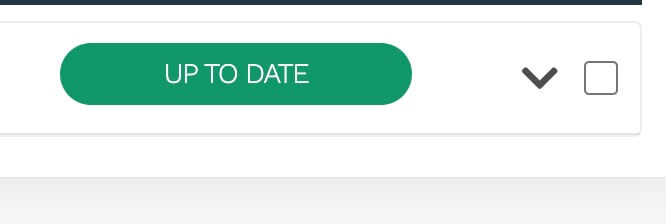
Once expanded, the panel gives you access to the available management, update, staging, and security tools for that WordPress installation.
Important: Before making any changes, confirm that you have selected the correct website, particularly if you manage more than one WordPress installation.


