Introducing Hipposerve® WordPress Manager
WordPress is powerful and flexible, but it must be managed carefully and kept up to date. Outdated WordPress installations, plugins, themes, and user accounts can all create opportunities for attackers.
Hipposerve® WordPress Manager brings the most important WordPress management and security tools together in one convenient place inside your Hippo Panel.
Whether you manage one WordPress website or several, WordPress Manager gives you a clear overview of every installation and allows you to perform common management tasks without having to sign in to each website separately.
What Is WordPress Manager?
WordPress Manager is a control panel for installing, managing, updating, securing, copying, and removing WordPress websites hosted with Hipposerve.
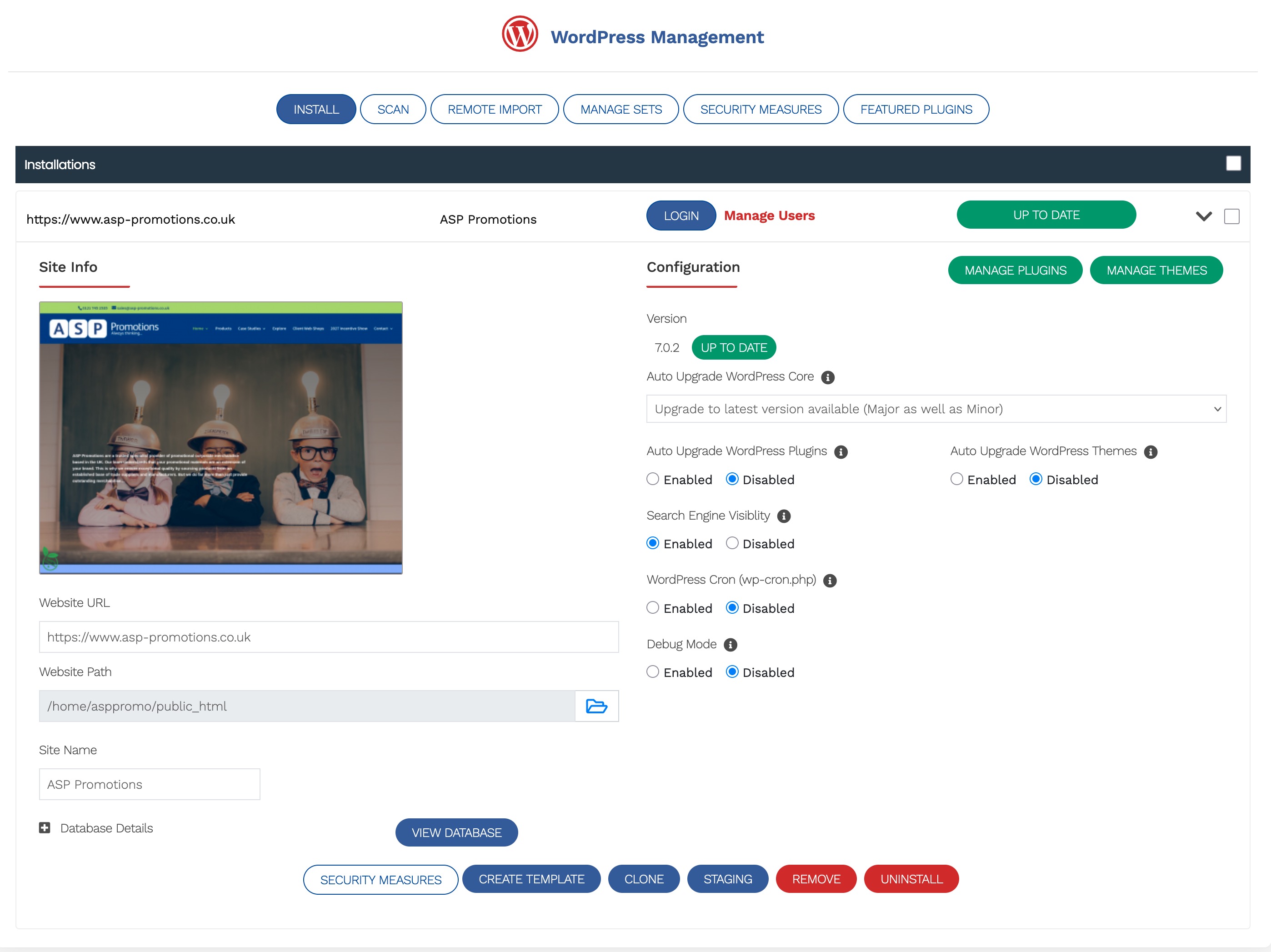
Each WordPress installation is displayed in its own expandable management panel. From here, you can review important information about the website and access its management tools from a single screen.
This is particularly useful if you manage several websites, as you do not need to sign in to each WordPress dashboard individually to carry out routine tasks.
What Can You Do With WordPress Manager?
WordPress Manager provides access to a wide range of tools for managing your website.
- View and manage one or more WordPress installations from a single screen.
- Sign in securely to the WordPress dashboard with one click.
- Manage WordPress administrator and user accounts.
- View the installed WordPress version and check whether it is up to date.
- Update the WordPress core when a newer version is available.
- Enable automatic updates for WordPress core, plugins, and themes.
- View, activate, deactivate, and update plugins.
- View, activate, deactivate, and update themes.
- Review important configuration settings.
- Access database information and management tools.
- Clone an existing WordPress website.
- Create a staging copy for testing changes safely.
- Create reusable WordPress installation templates.
- Remove or completely uninstall an installation when it is no longer required.
One-Click WordPress Login
The Login button provides secure, one-click access to the WordPress administration area. This makes it quicker to manage your website without repeatedly entering your WordPress username and password.
You can also use Manage Users to review and manage the user accounts associated with the installation.
Keeping WordPress Up to Date
Keeping WordPress, its plugins, and its themes up to date is one of the most important steps you can take to protect your website.
WordPress Manager displays the installed WordPress version and clearly shows whether an update is available. It also provides separate tools for managing installed plugins and themes.
You can enable automatic updates for:
- WordPress core
- WordPress plugins
- WordPress themes
Enabling automatic updates helps ensure that important security fixes are installed promptly and reduces the risk of your website continuing to use vulnerable or outdated software.
Managing Plugins and Themes
Plugins and themes add useful features and design options to WordPress, but they can also become a security risk if they are outdated, abandoned, or no longer required.
Using the Manage Plugins and Manage Themes tools, you can:
- See which plugins and themes are installed.
- Check whether updates are available.
- Update plugins and themes.
- Activate or deactivate individual plugins.
- Activate or deactivate installed themes.
- Remove components that are no longer needed.
As a general rule, you should remove any plugin or theme that you no longer use. Deactivating unused software does not always remove its files or eliminate the potential security risk.
WordPress Security Measures
One of the most important parts of WordPress Manager is the Security Measures section. It provides a collection of options designed to harden your WordPress installation and reduce common security risks.
These security measures can help to:
- Protect important WordPress files and directories.
- Reduce exposure to common automated attacks.
- Restrict potentially unsafe WordPress functionality.
- Improve the security of the WordPress administration area.
- Protect configuration files containing sensitive information.
- Apply recommended WordPress security settings.
- Review which security measures have already been applied.
- Identify additional hardening measures that can be enabled.
The available measures may vary depending on the WordPress version, website configuration, and hosting environment. We recommend reviewing each option before applying it, particularly if your website uses custom plugins, themes, or integrations.
Important: Security hardening reduces risk, but it does not replace strong passwords, current software, reputable plugins, regular backups, and careful user management.
Creating a Staging Website
A staging website is a private copy of your live website that can be used to test updates and changes before applying them to the live site.
The Staging tool can be useful when:
- Testing a major WordPress update.
- Trying a new plugin or theme.
- Making significant design changes.
- Investigating compatibility problems.
- Testing custom code.
Using a staging website reduces the risk of an untested change affecting your live website or its visitors.
Cloning a WordPress Website
The Clone tool creates a copy of an existing WordPress installation. This can be useful when creating a similar website, moving an installation to another location, or preparing a separate copy for development work.
After cloning a website, always check its domain settings, search-engine visibility, forms, email delivery, licences, and any external integrations before making the copy publicly available.
Removing a WordPress Installation
WordPress Manager includes options to remove or uninstall a WordPress installation.
Warning: These options can permanently remove website files and database content. Before removing an installation, confirm that you have selected the correct website and that a suitable backup is available.
Getting Started
- Sign in to your Hippo Panel.
- Open WordPress Manager.
- Locate the WordPress installation you want to manage.
- Click the down arrow next to the installation status to expand its management panel.
- Review the installation status, available updates, and security measures.
In the next articles in this series, we will explain how to use WordPress Manager to update WordPress, manage plugins and themes, enable automatic updates, and apply security-hardening measures.
If your WordPress website is hosted by Hipposerve and you need help using WordPress Manager, please contact our support team. We’ll be happy to help.