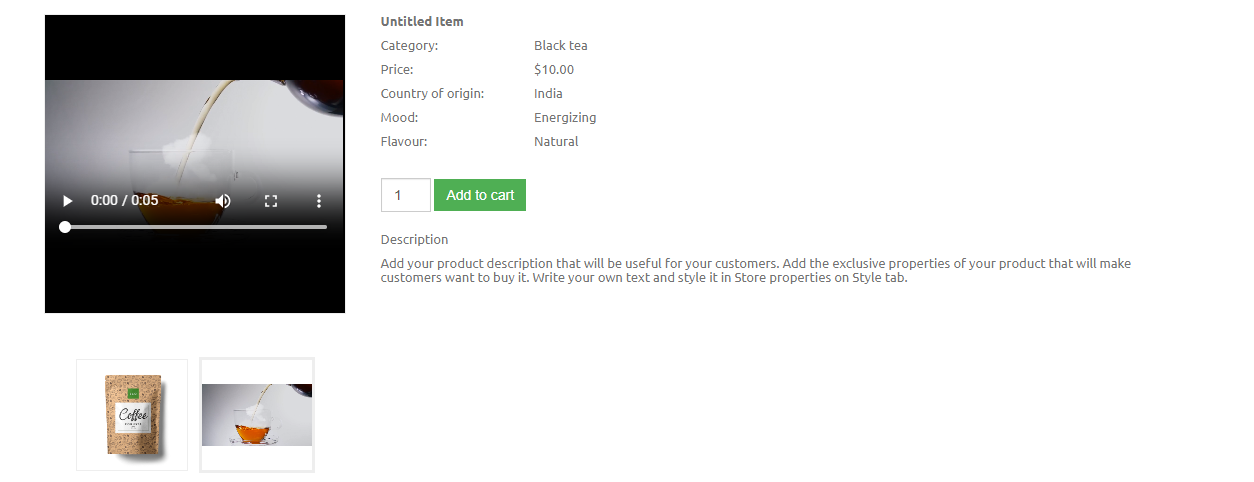
How to Add MP4 Videos to a Gallery or Store Product
Hipposerve® Studio allows you to add MP4 videos to both image galleries and online store products. Videos are an excellent way to showcase products, demonstrate services and create more engaging content for your visitors.
Tip: MP4 is the recommended video format for the best compatibility across modern web browsers.
 Adding a Video to a Gallery
You can include videos alongside the images in any gallery.
- Drag and drop the Gallery widget onto your page.
- Select your preferred gallery layout.
- Select the gallery and open the Pictures section in the right-hand toolbar.
- Click Add Images/Videos.
- Click Add New.
- Select the video layout you would like to use.
- Upload your MP4 video and click Select.
Tip: You can also drag and drop an MP4 video directly from your computer into the website builder.
 Finding Uploaded Videos
If you have already uploaded videos, you can quickly locate them in the media library.
- Open the Gallery Media Manager.
- Click Full Media Library.
- From the Show drop-down menu, select Video.
Only your uploaded videos will be displayed, making them easy to reuse throughout your website.
 Adding a Video to a Store Product
You can also add videos to products in your online store, allowing customers to see your products in action.
- Drag and drop the Commerce widget onto your page.
- Select your preferred store layout.
- Open Edit Products from the right-hand toolbar.
- Select the product you wish to edit.
- Open the Images section.
- Click Add New.
- Upload your MP4 video.
- Select the uploaded video and click Apply.
- Click Apply again in the product editor to save your changes.
Recommended: Keep your main product image as the primary thumbnail and add videos as additional gallery items. This gives customers both a clear product image and a video demonstration.
Note: Large video files can increase page loading times. Compress videos where possible before uploading them.
 Best Practices
- Use MP4 videos for the best browser compatibility.
- Keep videos short, clear and relevant to your content.
- Compress videos before uploading to improve page loading speeds.
- Use your best product image as the main gallery image and add videos as supporting media.
- Reuse uploaded videos from the Full Media Library instead of uploading duplicate files.