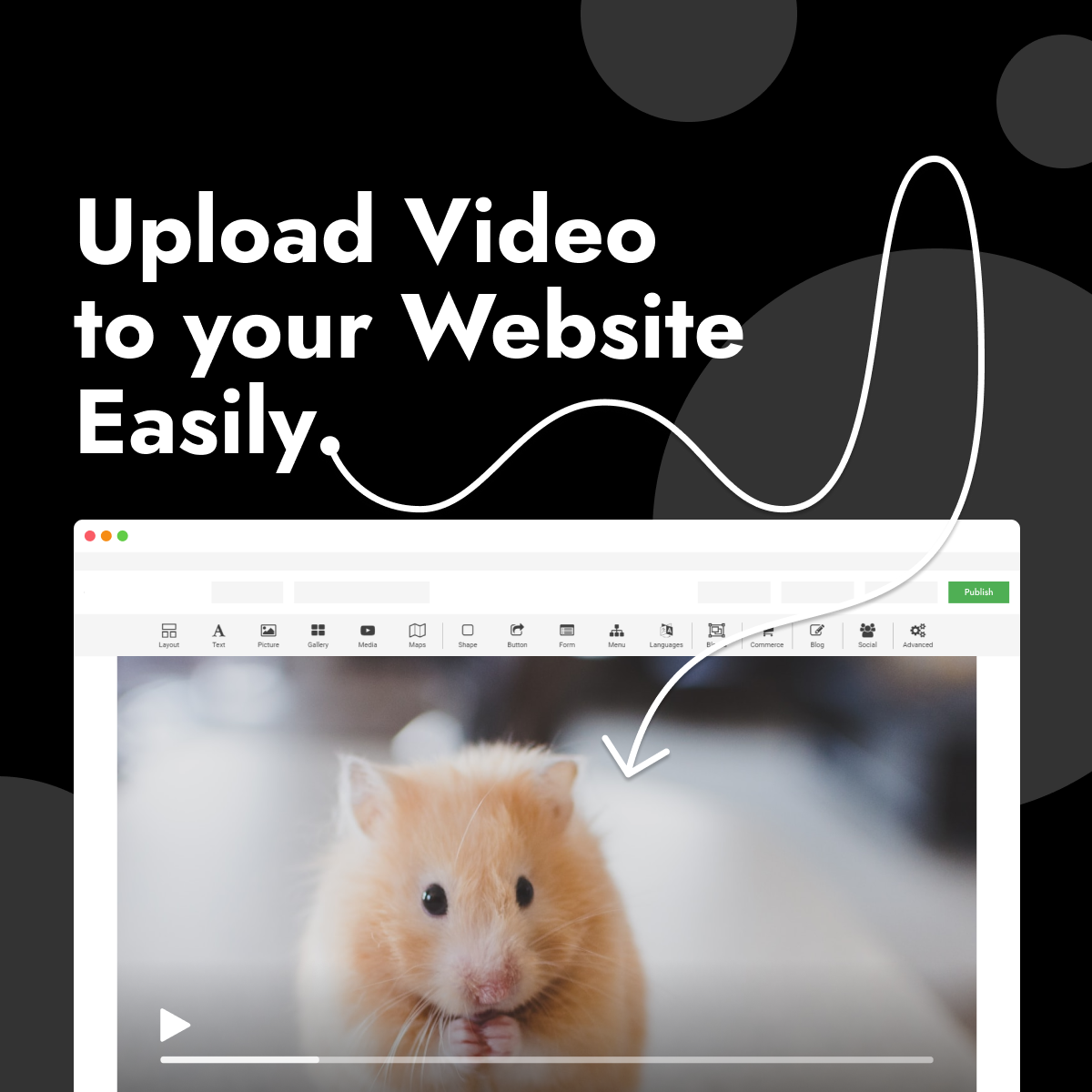
How to Use the Hipposerve® Studio Video Widget
Adding video to your website is an excellent way to engage visitors, demonstrate products, showcase your business or share multimedia content.
Hipposerve® Studio provides several ways to add video depending on how you want it to appear. You can embed videos from services such as YouTube, use videos as animated backgrounds, or upload your own videos with full playback controls.
 Option 1: Embed a Video
The easiest way to add a video is by embedding content from a video hosting service such as YouTube.
- Drag the Video widget onto your page.
- Paste the video URL or embed link into the widget settings.
- The video player will appear on your page and visitors can play it directly.
 Option 2: Use a Video Background
You can use your own video as the background of a shape or content section to create an eye-catching visual effect.
- Drag the Shape widget onto your page.
- Select the desired shape composition.
- Open the Background settings from the right-hand toolbar.
- Select Image/Video.
- Click Upload New File.
- Select your video and click Open, then Select.
- Adjust the available video settings, including:
- Opacity
- Start time
- End time
 Option 3: Upload a Video with Playback Controls
If you want visitors to watch a video with sound and standard playback controls, you can use the Custom HTML widget.
- Drag the Advanced widget onto your page.
- Select Custom HTML.
- In the right-hand toolbar, click the
 edit icon.
 - Insert the following HTML:
<video src="VIDEO_FILE" controls>
    Your browser does not support the video tag.
</video>- Select VIDEO_FILE and delete the placeholder text.
- Click Click to add file(s) in the top-right corner.
- Select Upload New File.
- Choose your video, click Open, then Select.
- Click Apply.
Your uploaded video will now include normal playback controls, allowing visitors to play, pause and adjust the volume.
 Best Practices
- Keep videos as small as possible to improve page loading speeds.
- Use MP4 format for the widest browser compatibility.
- Consider embedding YouTube videos instead of uploading large files.
- Use background videos only for visual enhancement, as they play without sound.
- Avoid autoplay videos with sound, as these can negatively affect the visitor experience.