
























































Keeping WordPress Up to Date
Keeping WordPress up to date helps protect your website and ensures it continues to run smoothly. WordPress regularly releases updates that address security vulnerabilities, fix bugs, improve performance, and introduce new features.
This guide explains how to update WordPress using the WordPress Manager in your Hippo Panel and how to enable automatic updates.
Why WordPress Updates Are Important
- Protect your website against known security vulnerabilities.
- Maintain compatibility with current themes, plugins, and services.
- Improve website performance, stability, and reliability.
- Receive new features, enhancements, and bug fixes.
- Reduce the risk of problems caused by outdated software.
Access the WordPress Manager
- If you need help accessing this, you can find a guide here:
Updating WordPress Manually
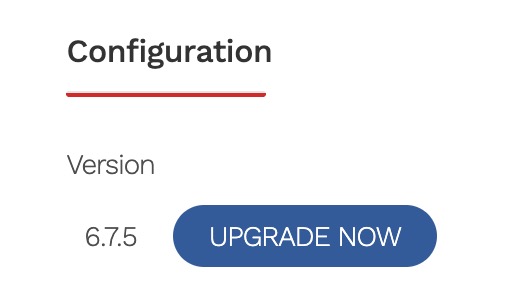
If your WordPress installation is out of date, an Upgrade Now button will appear next to its current version number.
- Check that you have a recent backup of your website.
- Click Upgrade Now.
- Allow a few minutes for the update to complete.
- Check your website afterwards to make sure everything is working correctly.
Please note: Your website may be temporarily unavailable while the update is being installed.
Enabling Automatic Updates
The automatic-update settings are available in the main management panel for your WordPress installation.
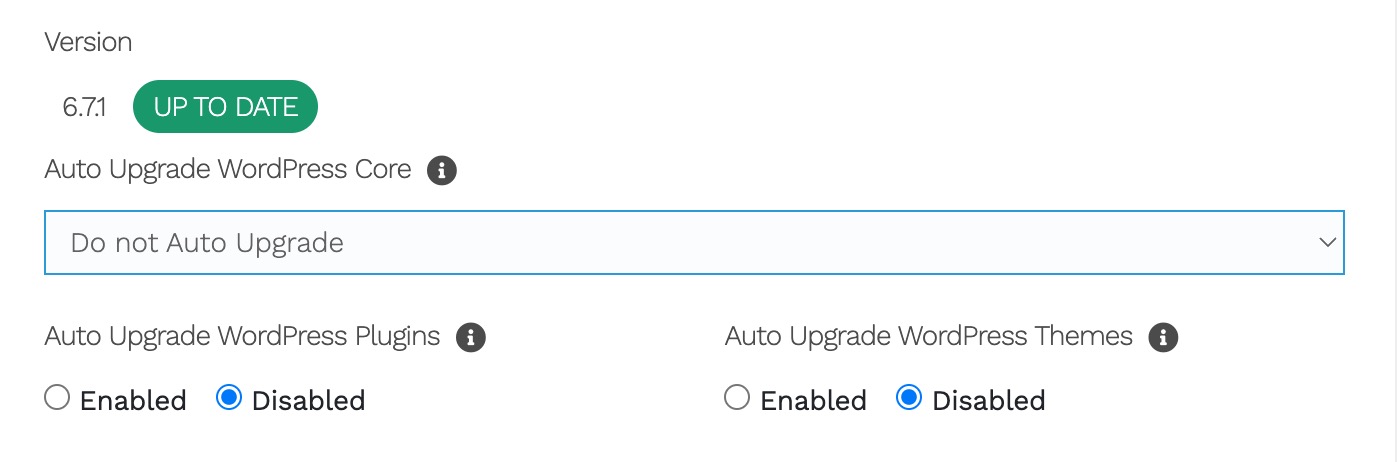
You can enable automatic updates for:
- WordPress core
- Plugins
- Themes
For most websites, Hipposerve recommends enabling all three options. This helps keep your installation secure and reduces the risk of it falling behind on important updates.
Backing Up Your Website
We recommend keeping regular backups of your website. If an update causes an unexpected issue, a recent backup gives you a quick way to restore the site.
Nightly backups are included with eligible Hipposerve hosting plans, including Hipposerve® Core, Hipposerve® Studio, Hipposerve® Publish, Hipposerve® Reseller, Hipposerve® Web Design Club, and Business Smart. Backups are normally taken between 1:00am and 3:00am and retained for seven days.
Extended backup-retention options of 30, 180, or 365 days may also be available to purchase. Business One customers can add managed backups to their service.
If you operate your own unmanaged VPS or server instance, you are responsible for arranging and maintaining your own backups.
If an Update Causes a Problem
Occasionally, an update may reveal a compatibility issue involving a plugin, theme, or custom code.
If your website develops a problem after an update:
- Check whether a recent backup is available.
- Temporarily disable your plugins.
- Re-enable the plugins one at a time, checking the website after each one.
- Temporarily switch to a standard WordPress theme if the problem continues.
- Restore the most recent working backup if necessary.
If your website is hosted by Hipposerve and you need assistance, please contact our support team. We’ll be happy to help you identify the next step.


