Introduction
AI Ignite's automatic uploader is the quickest and easiest way to publish most AI-generated websites. It performs a series of compatibility and security checks before your website goes live, helping identify common issues before they become problems.
However, some AI-generated websites have more complex folder structures or project layouts that aren't suitable for the automatic uploader. In these situations, you may prefer to upload your files manually using the built-in File Manager.
Please note: Files uploaded manually do not go through the same compatibility and validation checks as those uploaded using the automatic AI Ignite uploader. While your hosting account is routinely scanned by our security systems, manually uploaded files are not automatically checked for issues such as unsupported technologies, missing files or website structure before publication.
For this reason, we recommend using the automatic uploader whenever possible. Manual uploads are intended for more advanced users who are comfortable working with website files and folder structures.
Step 1: Open the File Manager
From your Website Management page, click File Manager on the Website Management Panel.
This opens the online file manager for your hosting account.
Step 2: Open the public_html Folder
Within the File Manager, open the folder named public_html.
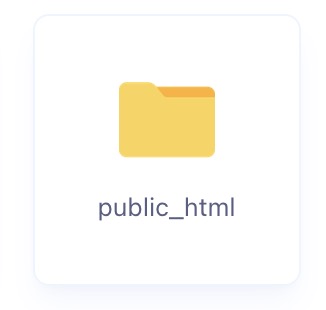
This is the document root for your website. Any files placed here are served when someone visits your website.
Step 3: Upload Your ZIP File
Drag and drop your website ZIP file into the public_html folder, or use the upload option to select it from your computer.
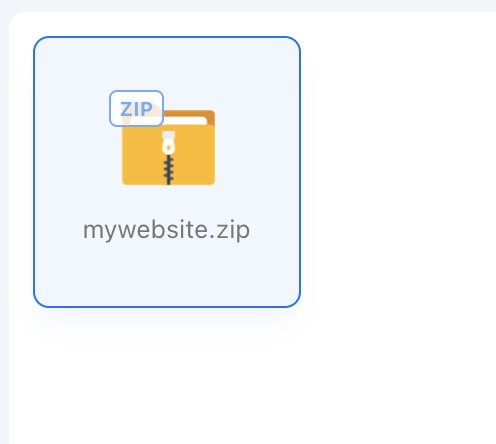
Once the upload has completed, you'll see your ZIP file listed in the File Manager.
Step 4: Extract Your Website
Right-click your uploaded ZIP file and choose Extract Files from Archive.
When prompted for the destination, select HERE.
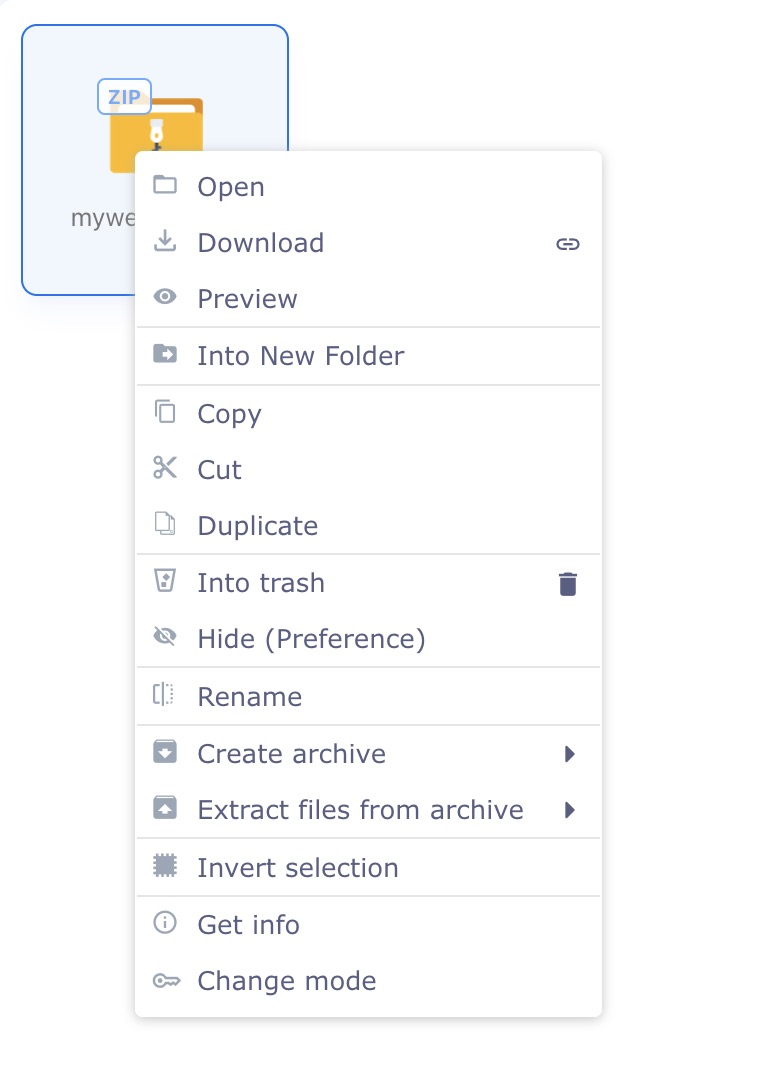
Your website files will now be extracted directly into the public_html folder, making them available for your website.
Step 5: View Your Website
Once the extraction has completed, simply visit your website using its web address.
If everything has been uploaded correctly, your website should now be live.
If you're using a free HippoSites domain or a new domain purchased during signup, your website should normally be available almost immediately.
If you're using an existing domain name, you'll first need to ensure that your DNS settings point to your AI Ignite hosting account. Until your DNS changes have propagated, you may continue to see your previous website or no website at all.
A Few Things to Keep in Mind
Uploading files manually offers greater flexibility, but it is also a little more involved than using the automated uploader.
You'll need a basic understanding of website files, folder structures and naming conventions to ensure everything is uploaded to the correct location. For example, your website's index.html file should normally be located directly inside the public_html folder unless your project has been intentionally designed differently.
If your website doesn't display correctly after uploading, it's often because the files have been extracted into the wrong folder or the website structure isn't where your browser expects it to be.
If you need any assistance, don't worry. Our team is always happy to help.
Simply visit:
https://help.hipposerve.com
We'll be happy to help you get your website online.