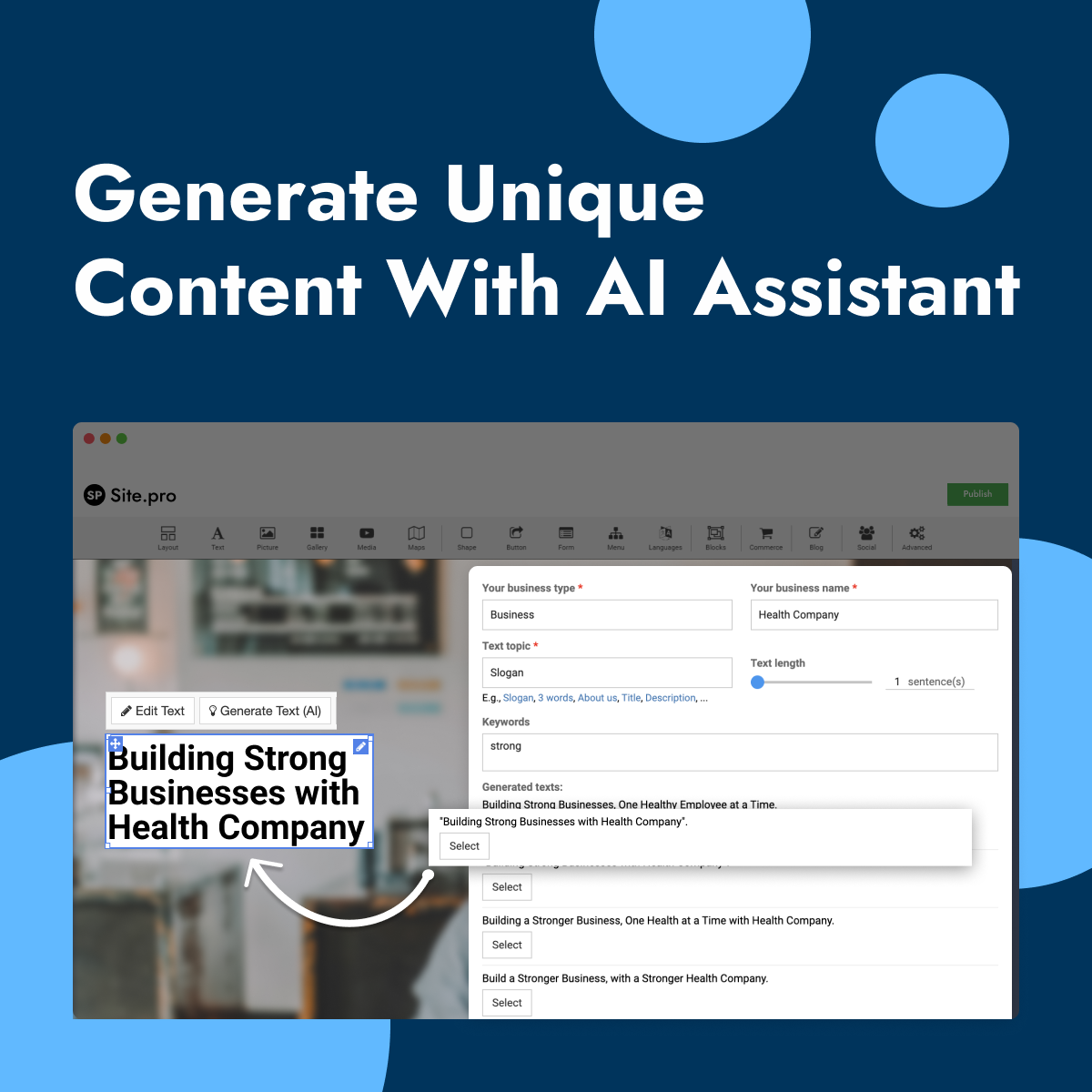





















































 Përdorimi i Gjeneratorit AI të Tekstit në Hipposerve® Studio
Gjeneratori AI i Tekstit në Hipposerve® Studio ju ndihmon të krijoni shpejt përmbajtje profesionale për faqen tuaj duke përdorur inteligjencën artificiale. Qoftë për tekstin e faqes kryesore, përshkrime shërbimesh, materiale marketingu apo ide për faqen tuaj, asistenti AI mund të kthejë një faqe bosh në përmbajtje të kuruar brenda sekondash.
Është perfekt për të përshpejtuar krijimin e faqeve të internetit, veçanërisht kur frymëzimi ka dalë për një kafe.
 Si të gjeneroni tekst me AI
Për të përdorur Gjeneratorin AI të Tekstit:
- Zgjidhni një element ekzistues teksti brenda website builder-it ose shtoni një widget të ri teksti.
- Hapni editorin e avancuar të tekstit dhe zgjidhni Generate Text (AI).
- Vendosni Llojin e Biznesit dhe Emrin e Biznesit.
- Zgjidhni Temën e Tekstit që preferoni.
- Zgjidhni gjatësinë e dëshiruar të tekstit te Text Length.
- Shtoni Fjalët Kyçe që dëshironi të përdoren nga AI në tekstin e gjeneruar.
- Klikoni butonin Generate.
- Shikoni opsionet e gjeneruara dhe klikoni Select te versioni që dëshironi të përdorni.
Këshillë: Shtimi i fjalëve kyçe specifike dhe një përshkrimi të qartë të biznesit zakonisht prodhon rezultate shumë më të mira dhe më të përshtatshme.
 Gjëra që duhet të dini gjatë përdorimit të AI për gjenerimin e tekstit
- Nëse butoni Generate Text (AI) nuk shfaqet, prisni disa minuta dhe rifreskoni faqen e website builder-it.
- Nëse lidhja juaj me internetin ndërpritet gjatë gjenerimit të përmbajtjes, rilidheni dhe provoni përsëri.
- Teksti i gjeneruar nga AI është krijuar për të përshpejtuar krijimin e përmbajtjes, por rekomandohet gjithmonë ta rishikoni dhe personalizoni tekstin përpara publikimit.
Shënim: Nëse butoni Generate Text (AI) shfaqet joaktiv, mund t’ju duhet të konfiguroni një OpenAI API key.
 Pamje paraprake e Gjeneratorit AI të Tekstit
Imazhi më poshtë tregon një shembull të ndërfaqes së Gjeneratorit AI të Tekstit brenda Hipposerve® Studio.