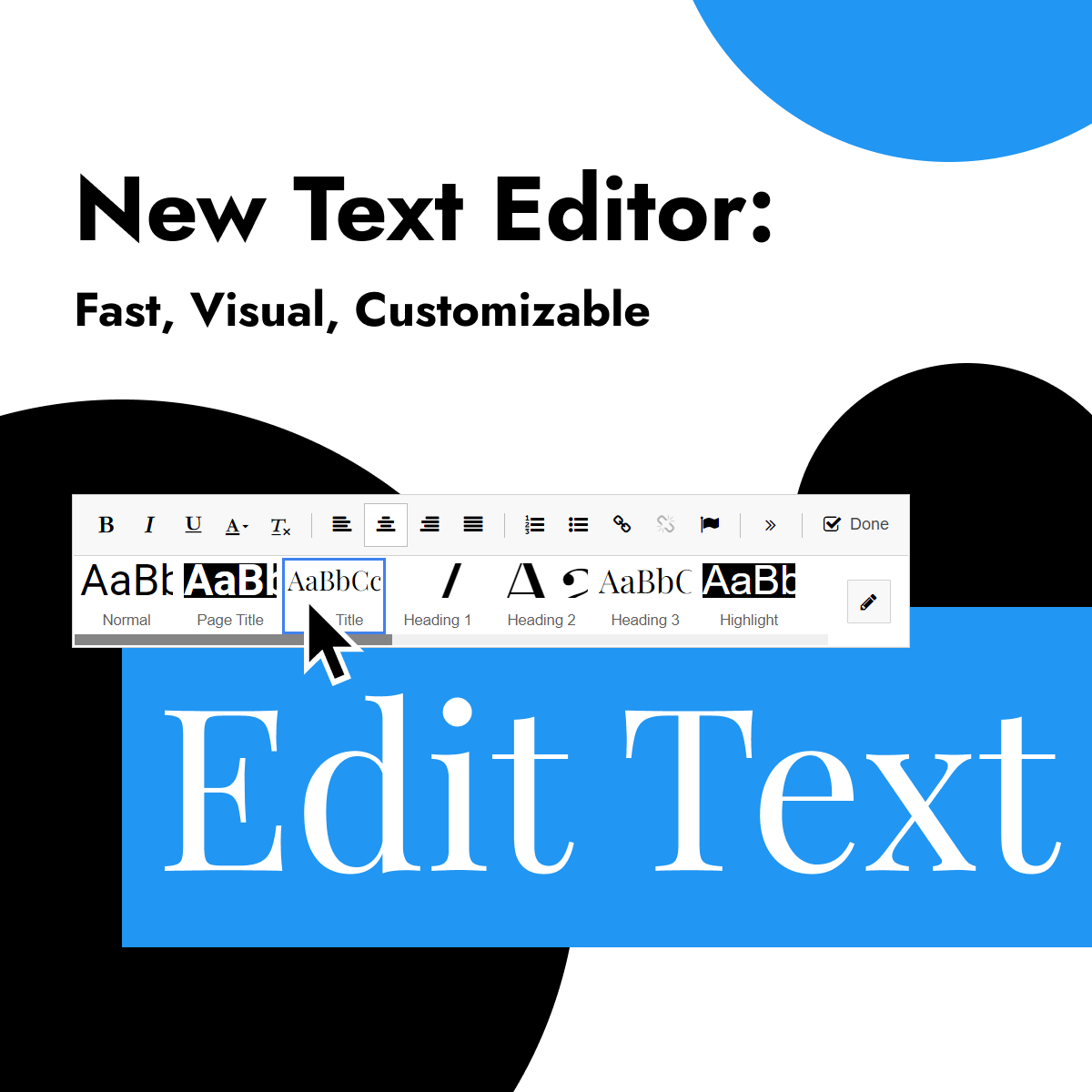





















































Shtimi dhe Ndryshimi i Tekstit në Hipposerve® Studio
Hipposerve® Studio e bën shumë të lehtë shtimin, ndryshimin dhe stilizimin e tekstit në faqen tuaj të internetit pa pasur nevojë për njohuri programimi. Qoftë duke krijuar tituj, paragrafë, lidhje ose pika ankorimi, gjithçka mund të menaxhohet drejtpërdrejt nga editori vizual me vetëm disa klikime.
 Shtimi i Tekstit
Për të shtuar tekst të ri në faqen tuaj:
- Hapni panelin kryesor të mjeteve.
- Tërhiqni dhe lëshoni elementin Text në faqen tuaj.
- Zgjidhni strukturën ose përbërjen e tekstit që dëshironi të përdorni.
- Klikoni në zonën e tekstit dhe filloni të shkruani përmbajtjen tuaj.
 Ndryshimi i Tekstit Ekzistues
Për të ndryshuar tekstin ekzistues në faqen tuaj:
- Zgjidhni bllokun e tekstit që dëshironi të përditësoni.
- Klikoni Edit Text nga paneli i mjeteve të kontekstit.
- Theksoni pjesën e tekstit që dëshironi të ndryshoni.
- Përdorni opsionet e editorit të avancuar për të formatuar dhe personalizuar përmbajtjen.
Editori i avancuar i tekstit përfshin mjete për tituj, ngjyra, lidhje, rreshtim dhe shumë opsione të tjera.
 Personalizimi i Tekstit
 Ndryshimi i Ngjyrës së Tekstit
Për të ndryshuar ngjyrën e tekstit:
- Zgjidhni bllokun e tekstit.
- Hapni seksionin Styles.
- Klikoni
 pranë paletës së ngjyrave.
 - Zgjidhni ngjyrën që dëshironi të përdorni.
 Shtimi i një Lidhjeje
Për ta kthyer tekstin në një lidhje të klikueshme:
- Klikoni Edit Text.
- Theksoni tekstin që dëshironi të lidhni.
- Klikoni ikonën në editorin e tekstit.
- Vendosni të dhënat e lidhjes dhe ruani ndryshimet.
 Shtimi i një Ankore
Ankorat ju lejojnë të lidheni drejtpërdrejt me një seksion specifik të faqes. Janë ideale për menu, butona ose lidhje “shko te seksioni”.
- Klikoni Edit Text.
- Theksoni tekstin ose zonën ku dëshironi të shfaqet ankora.
- Klikoni ikonën në editorin e tekstit.
- Vendosni një emër të shkurtër dhe të qartë për ankorën.
contact, pricing ose about. Shmangni përdorimin e hapësirave kur është e mundur. Parashikimi i Ndryshimeve Tuaja
Pasi të keni përfunduar ndryshimet e tekstit, përdorni opsionin e parashikimit për të kontrolluar si duket faqja juaj në desktop, tablet dhe pajisje mobile.
Kur gjithçka duket siç duhet, ruani ose publikoni ndryshimet dhe sillni faqen tuaj të internetit në jetë.