























































Menaxhimi i Shërbimit: VPS Snapshots
Një snapshot është një kopje e VPS tuaj në një moment të caktuar në kohë që kap gjendjen e saktë të serverit në momentin kur krijohet snapshot-i. Kjo përfshin sistemin operativ, konfigurimin, aplikacionet e instaluara dhe të gjitha të dhënat e ruajtura.
Snapshots janë të ndryshëm nga backup-et tradicionale. Një backup zakonisht është një kopje e planifikuar për rikuperim nga katastrofat e sistemit dhe përdoret për të rikthyer të dhënat pas një dështimi. Një snapshot, nga ana tjetër, krijohet zakonisht manualisht dhe përdoret si një pikë rikthimi e shpejtë përpara se të bëhen ndryshime në server.
Hipposerve® ofron snapshots si një mjet të përshtatshëm për t'ju ndihmuar të mbroni VPS tuaj përpara se të bëni ndryshime ose të testoni konfigurime të reja.
Përdorimet e zakonshme për snapshots përfshijnë:
- Përpara instalimit të softuerit të ri në mënyrë që të mund të riktheheni shpejt nëse diçka shkon keq.
- Përpara përditësimeve të sistemit ose ndryshimeve të konfigurimit.
- Gjatë zhvillimit ose testimit kur mund të keni nevojë të ktheheni në një gjendje të njohur dhe funksionale.
- Përpara mirëmbajtjes së madhe që mund të ndikojë në stabilitetin e sistemit.
E rëndësishme: Snapshots janë një shërbim me pagesë. Krijimi dhe ruajtja e snapshot-eve shtesë do të rezultojë në tarifa mujore shtesë.
Detajet e plota mbi tarifimin e snapshot-eve mund të gjenden këtu:
https://hipposerve.com/legal-stuff/billing-and-charging
Për shkak se snapshot-et tarifohen çdo muaj, është e rëndësishme t’i fshini ato kur nuk janë më të nevojshme. Hipposerve® nuk mund të lëshojë rimbursime për tarifat që janë akumuluar tashmë për snapshot-et e ruajtura.
Qasja në Menaxhimin e Snapshot-eve
- Hapni VPS tuaj në Hipposerve® Portal (shiko këtu).
- Në Service Management, klikoni ikonën Snapshot.
Kjo do të hapë ndërfaqen e menaxhimit të snapshot-eve ku mund të shikoni çdo snapshot ekzistues për instancën tuaj VPS.
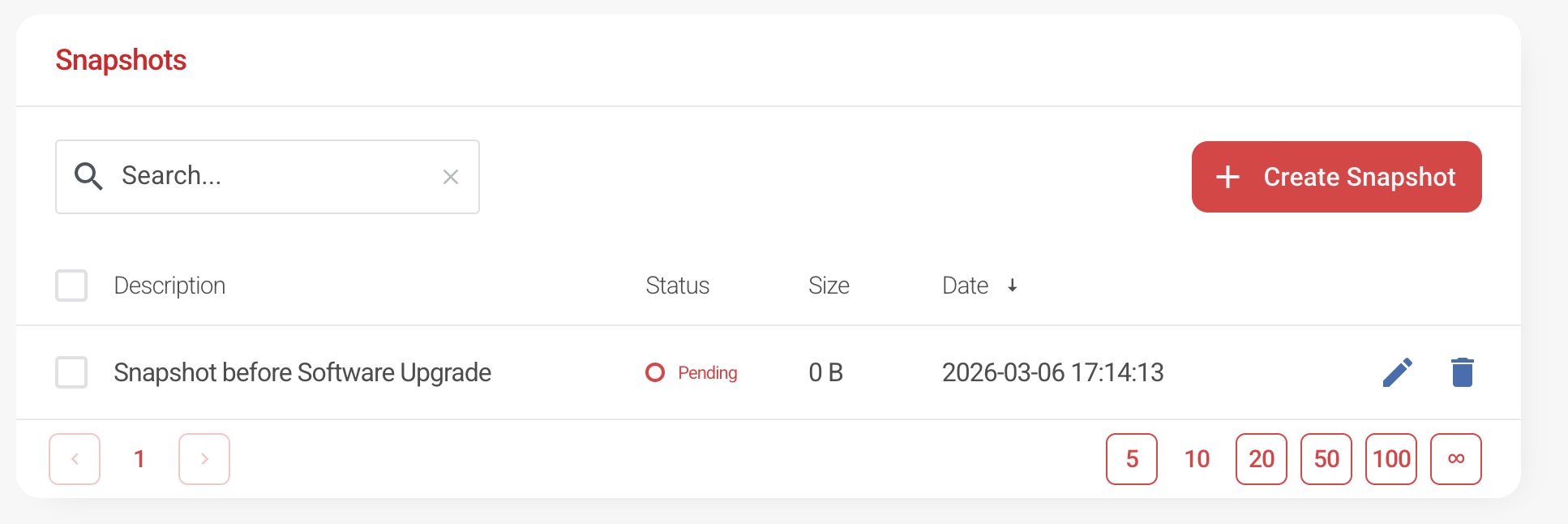
Krijimi i një Snapshot
- Klikoni butonin Create Snapshot.

- Do të shfaqet dialogu për krijimin e snapshot-it.
- Vendosni një emërtim përshkrues për snapshot-in në mënyrë që të jetë i lehtë për t’u identifikuar më vonë.
- Konfirmoni krijimin e snapshot-it.
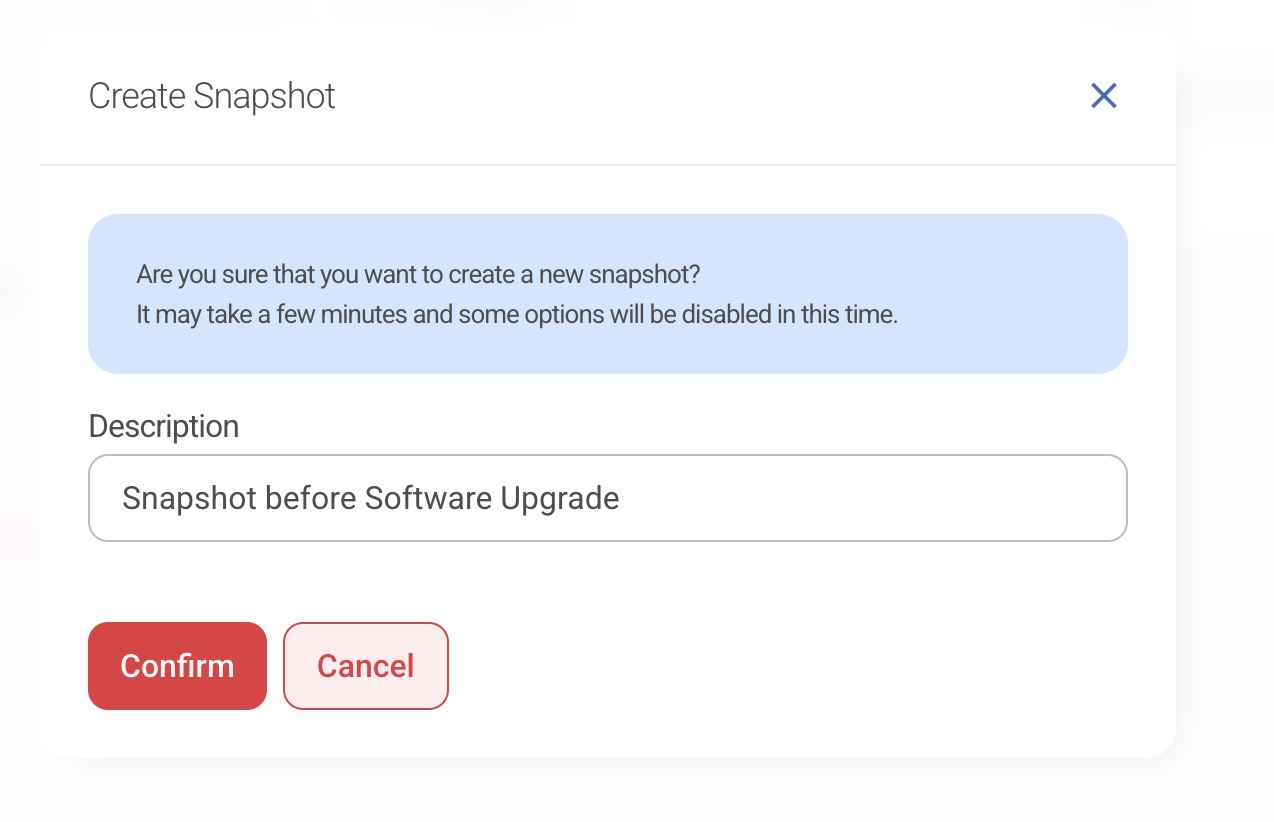
Koha e nevojshme për të krijuar një snapshot mund të ndryshojë në varësi të madhësisë së VPS. Në shumicën e rasteve kjo mund të zgjasë nga disa minuta deri në disa orë.
Rikthimi i një Snapshot
- Gjeni snapshot-in që dëshironi të riktheni.
- Klikoni ikonën Restore.
- Konfirmoni që dëshironi të vazhdoni me rikthimin.
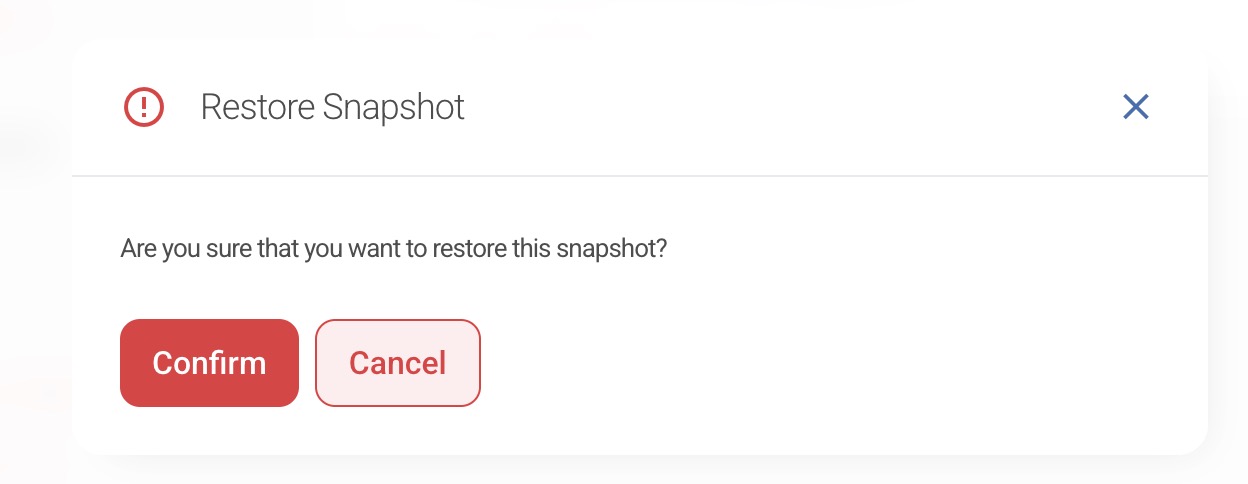
Rikthimi i një snapshot-i do të fshijë të gjithë përmbajtjen aktuale të VPS tuaj dhe do ta rikthejë serverin saktësisht në gjendjen që ishte kur snapshot-i u krijua.
Ndryshimi i Emrit të një Snapshot
- Klikoni ikonën Edit pranë snapshot-it.
- Përditësoni emrin e snapshot-it.
- Konfirmoni ndryshimet.
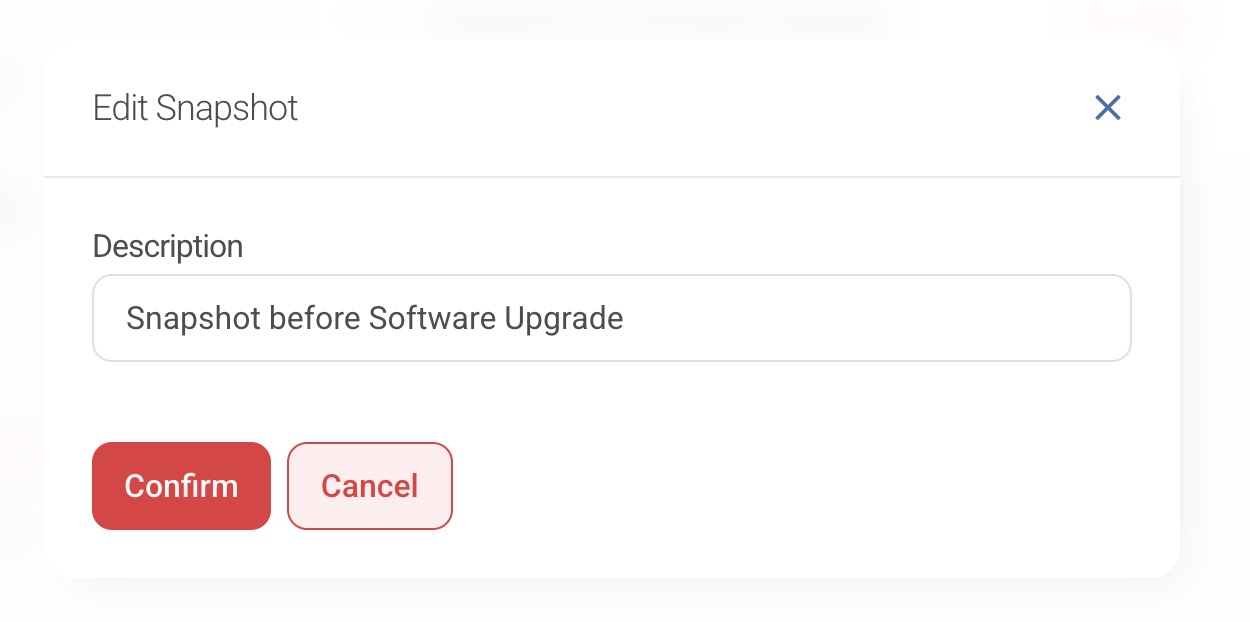
Kjo ju lejon të riemërtoni snapshot-et për të pasqyruar më mirë qëllimin e tyre.
Fshirja e një Snapshot
- Gjeni snapshot-in që dëshironi të fshini.
- Klikoni ikonën Delete (koshin e plehrave).
- Konfirmoni fshirjen.
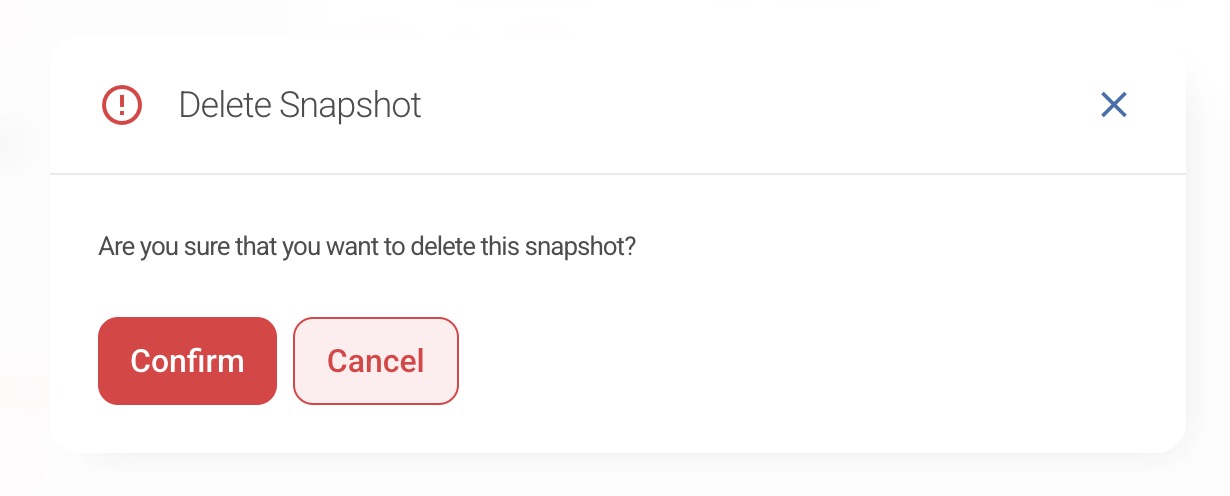
Fshirja e një snapshot-i do ta largojë atë përgjithmonë nga lista e snapshot-eve të VPS tuaj dhe do të parandalojë akumulimin e tarifave të mëtejshme.
Shënime të Rëndësishme
Paralajmërim: Rikthimi i një snapshot-i do të mbishkruajë përgjithmonë të gjitha të dhënat aktuale në VPS me përmbajtjen e snapshot-it të zgjedhur.
Fshirja e një snapshot-i do ta heqë atë përgjithmonë dhe ai nuk do të jetë më i disponueshëm për rikuperim.
Hipposerve® nuk mban përgjegjësi për asnjë humbje të të dhënave, ndërprerje të shërbimit ose probleme konfigurimi që mund të rezultojnë nga krijimi, rikthimi, ndryshimi ose fshirja e snapshot-eve të VPS. Gjithmonë duhet të siguroheni që të dhënat e rëndësishme janë bërë backup përpara kryerjes së operacioneve me snapshot.
Snapshots janë krijuar si një veçori praktike dhe nuk duhet të konsiderohen si zëvendësim për backup-et e rregullta.
Ndryshe nga shërbimet e backup-it të planifikuara, snapshot-et zakonisht krijohen manualisht dhe ruhen si imazhe të plota të diskut të VPS tuaj në një moment të caktuar. Edhe pse janë të dobishme për rikthime të shpejta, ato nuk janë të dizajnuara për mbrojtje afatgjatë të të dhënave.
Për rikuperim të besueshëm nga katastrofat dhe mbrojtje të vazhdueshme të të dhënave, ne rekomandojmë fuqimisht përdorimin e një zgjidhjeje të dedikuar për backup. Në shumicën e rasteve, backup-et automatike të rregullta janë gjithashtu një opsion më ekonomik për ruajtjen afatgjatë të të dhënave.