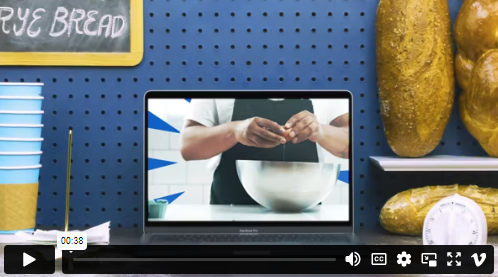





















































 Si të Përdorni Widget-in Vimeo në Hipposerve® Studio
Widget-i Vimeo ju lejon të integroni video nga Vimeo direkt në faqen tuaj të internetit. Është ideal për portofolë, video promovuese, projekte krijuese, udhëzime dhe përmbajtje profesionale video.
Videot transmetohen drejtpërdrejt nga Vimeo, duke ndihmuar që faqja juaj të mbetet e shpejtë dhe duke shfaqur video me cilësi të lartë.
Shtimi i një Videoje nga Vimeo
Shtimi i një videoje nga Vimeo në faqen tuaj kërkon vetëm pak çaste.
- Zvarritni dhe lëshoni widget-in Media në faqen tuaj.
- Zgjidhni një kompozim Vimeo.
- Në panelin në anën e djathtë, vendosni Vimeo ID ose Vimeo URL.
Videoja juaj nga Vimeo do të shfaqet automatikisht sapo të vendosni një ID ose URL të vlefshme të Vimeo.
 Personalizimi i Videos Vimeo
Widget-i Vimeo përfshin disa opsione për të kontrolluar mënyrën se si shfaqet dhe funksionon videoja e integruar.
 Madhësia e Videos
Rregulloni madhësinë e videos së integruar duke përdorur kontrollet në panelin në anën e djathtë.
Mund të aktivizoni gjithashtu opsionin Allow to adjust size automatically, në mënyrë që videoja të përshtatet automatikisht me madhësi të ndryshme ekranesh.
 Portreti dhe Titulli i Përdoruesit
Mund të zgjidhni nëse dëshironi të shfaqni portretin e përdoruesit të Vimeo dhe titullin e videos në videon e integruar.
Kjo është e dobishme kur dëshironi që vizitorët të shohin qartë autorin e videos ose kur titulli i videos ofron informacion shtesë.
 Riprodhimi Automatik
Nëse dëshironi që videoja të fillojë automatikisht kur ngarkohet faqja, aktivizoni opsionin e riprodhimit automatik në panelin në anën e djathtë.
 Ngjyra e Kontrolleve të Videos
Mund të personalizoni ngjyrën e kontrolleve të luajtësit Vimeo duke përdorur opsionin e ngjyrës në panelin në anën e djathtë.
Kjo ndihmon që luajtësi i videos të përshtatet më mirë me dizajnin e faqes suaj të internetit.
 Praktikat më të Mira
- Përdorni video Vimeo me cilësi të lartë për t'i dhënë faqes suaj një pamje profesionale.
- Aktivizoni rregullimin automatik të madhësisë për përvojën më të mirë në pajisje të ndryshme.
- Përdorni opsionet e portretit dhe titullit kur ato ofrojnë informacion të dobishëm për vizitorët.
- Shmangni riprodhimin automatik kur është e mundur, pasi shumë vizitorë preferojnë ta nisin vetë videon.
- Zgjidhni një ngjyrë për kontrollet që është e lehtë për t'u parë dhe që përshtatet me dizajnin e faqes suaj.